
The useful answer: price the whole job, not just the SSD
An HDD-to-SSD upgrade does not have one reliable price. The total depends on whether your computer accepts a 2.5-inch SATA drive or an M.2 drive, whether that M.2 slot supports SATA or NVMe, how much storage you need, and whether you will migrate the old installation yourself. Add any adapter, backup storage, software, labor, tax, and shipping before comparing quotes.
That is why a headline such as “a 1TB SSD upgrade costs $X” can mislead. It may describe the drive alone, omit a cloning adapter, or assume a computer that is easy to open. Use the checklist below to get a number that matches your machine and location.
Build your estimate from these line items
| Cost item | When it applies | What to ask or check |
|---|---|---|
| SSD | Always | Compatible form factor, interface, capacity, and warranty. Compare the same class of drive across local retailers. |
| Connection or mounting parts | Some laptops and desktops | USB-to-SATA cable/enclosure for migration, a 2.5-inch bay bracket, SATA cable, or required M.2 screw/heatsink. |
| Data migration | If keeping the current Windows installation | Ask whether cloning is included, which tool is used, and whether the source drive’s used space fits on the new drive. |
| Backup storage | Before either cloning or a clean install | Use storage separate from the drive being replaced. Include this only if you do not already have a usable backup destination. |
| Installation labor | If a technician does the work | Get a written total for opening the device, installing the drive, migration or reinstall, and post-install checks. |
| Operating-system setup | Usually with a clean install or repair | Clarify whether Windows installation, drivers, updates, account setup, and application reinstall are included. |
| Tax, shipping, and data recovery | Varies | Check checkout totals. If the old drive is failing and data is not backed up, ask for a separate recovery estimate before authorizing work. |
Estimate formula: SSD + required parts + migration/reinstall + labor + tax/shipping + optional backup or recovery. Compare the final total with the cost of replacing the computer, not only with the SSD price.
Check compatibility before buying
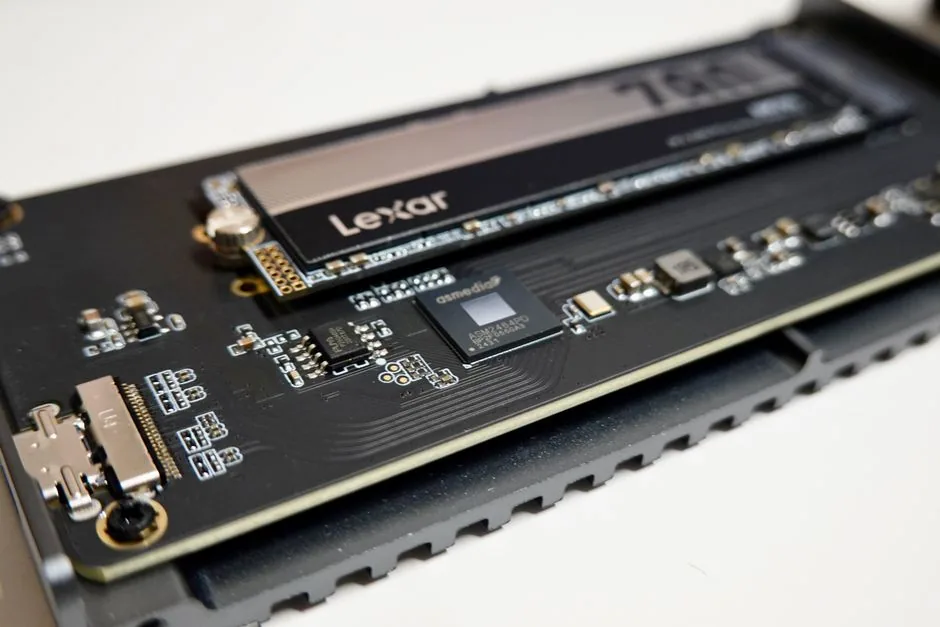
“M.2” describes a physical form factor; it does not by itself tell you whether a drive uses SATA or NVMe. The slot, motherboard, and drive must support the same protocol. Crucial’s compatibility guide explains this distinction and recommends checking the computer or motherboard documentation. Verify the exact model number, supported drive length (for example, 2280), interface, capacity limits, and whether another port shares bandwidth.
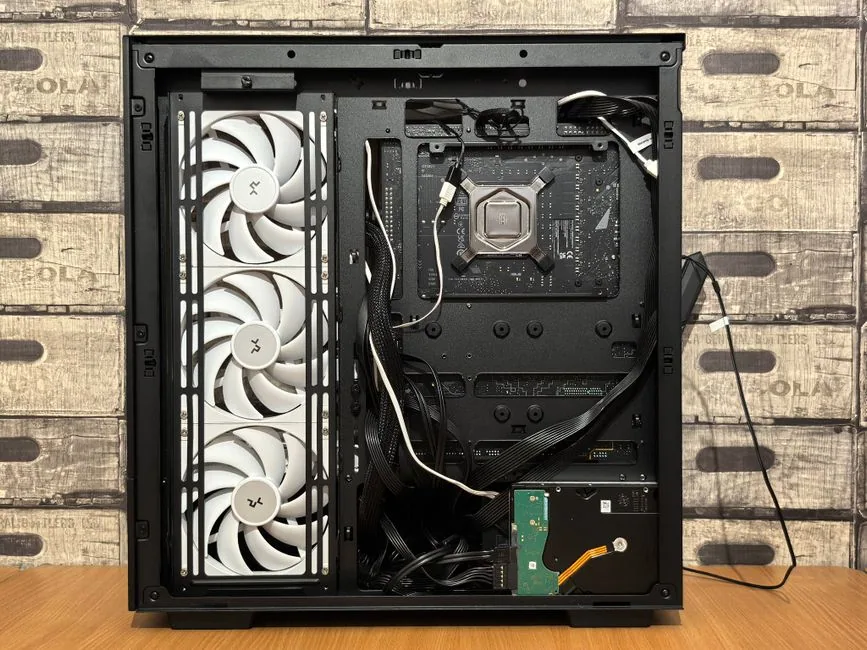
A 2.5-inch SATA SSD is often the straightforward replacement when an older computer has a 2.5-inch SATA HDD, but do not assume every laptop uses a removable standard drive. Some systems have soldered storage, a proprietary layout, a restricted thickness, or manufacturer-specific service instructions. Check the service manual before ordering. If a desktop uses a 3.5-inch bay, the 2.5-inch SSD may need a bracket; the SSD itself does not need to fill the whole bay to work.
Do not pay extra for a faster NVMe drive if the machine has no compatible NVMe slot. Even when a faster drive is backward compatible with a supported generation, the computer sets the practical ceiling. Match the part to the system, rather than buying a high speed number that the system cannot use.
DIY, cloning, or a clean install?
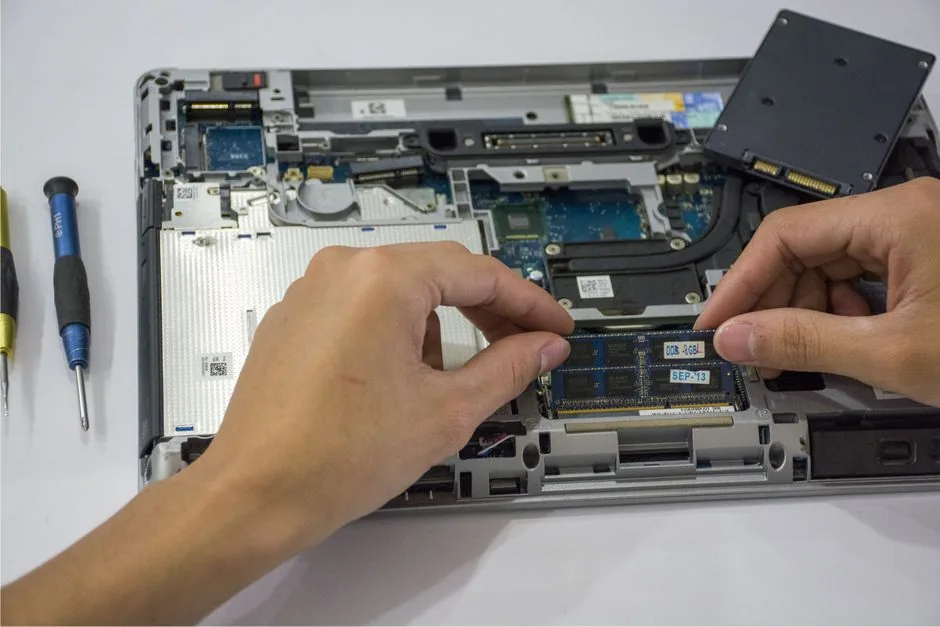
DIY installation can avoid labor charges, but only if you are comfortable opening the device and following its service instructions. Budget for any connection accessory needed to copy data while the old drive is still installed. Crucial’s installation guides emphasize backing up first, checking compatibility, and not forcing a connector or module into place.
Cloning copies the existing operating system, applications, and files to the SSD. It can save setup time, but it is not a substitute for a separate backup. Confirm that the destination has enough usable capacity for the source data, that the cloning software supports the system’s partition layout, and that you know how to select the new drive as the boot device. If the old HDD is making unusual noises, disconnecting, or reporting errors, repeated cloning attempts can worsen the situation; prioritize a safe backup or professional data-recovery advice.
A clean install starts Windows afresh and then restores personal files and reinstalls applications. It may be preferable when the old system is cluttered or damaged, but it takes time and you should have installation media, account access, application installers or licenses, and a verified backup ready. Microsoft distinguishes backup, restore, and recovery because they solve different problems; do not assume that a Windows recovery feature is a complete copy of every personal file.
What a technician’s quote should say
Ask for one itemized quote with the exact SSD model and capacity, parts, labor, tax, and any migration or operating-system work. Ask whether the technician returns the old drive, whether data is accessed or retained during service, and what happens if the old drive cannot be cloned. A low quote may cover only the physical replacement; another may include migration and setup. Those are different services, so compare like with like.
For laptops, confirm whether the battery must be disconnected and whether opening the case affects the manufacturer’s warranty or service terms. For both laptops and desktops, ask whether the job includes a boot check, drive detection, and a basic file check. Do not hand over an unencrypted drive with sensitive data without understanding the shop’s handling process.
A five-minute worksheet you can take to a shop
- Write down the computer’s exact model and current drive type.
- Check the service manual or manufacturer compatibility tool for supported form factor and interface.
- Measure how much data is actually used; choose capacity with room for normal growth.
- Decide between cloning and a clean install, and confirm a separate backup exists.
- Request an itemized total for the SSD, accessories, migration/setup, labor, and tax.
- Compare that total with a second quote and with the price of a replacement computer that meets your needs.
This approach is more useful than a universal price table: drive prices and labor rates change by country, retailer, model, and date, while the components of the estimate remain clear. If you share the computer model and country, the compatible drive and a current local parts estimate can be narrowed down.
Common questions
Is it always cheaper to install an SSD myself?
It can remove labor cost, but not necessarily every extra cost. You may need a USB adapter or enclosure, and a mistake can create downtime or data loss. If the device is difficult to open or the data is important, include professional labor in the comparison.
Can I use an M.2 NVMe drive in any M.2 slot?
No. The slot and system must support the drive’s protocol and physical size. M.2 SATA and M.2 NVMe can look similar while using different interfaces. Check the system manual or a model-specific compatibility list.
Should I clone a failing hard drive?
Not before considering the data risk. Make a backup if the drive is still readable and stable. If it is failing and the files are valuable, minimize use and get advice from a reputable recovery provider; a standard clone is not guaranteed to succeed.
Does a new SSD make every computer fast?
It can reduce storage-related waits, especially when replacing a mechanical HDD, but it cannot upgrade the CPU, memory, graphics, or a network connection. Results depend on the workload and the rest of the computer.
Sources and further reading
- Crucial: Why upgrade to an NVMe SSD? (SATA vs. NVMe compatibility)
- Crucial: NVMe PCIe M.2 installation guide
- Crucial: 2.5-inch SATA SSD installation guide
- Microsoft Support: Backup, restore, and recovery in Windows
- Microsoft Support: Back up and restore with File History
- Microsoft Support: Windows File Recovery
Image credits
Photo by Przemek Leśniewski on Pexels
Photo by Elias Gamez on Pexels
Photo by Andrey Matveev on Pexels