
An Xbox external drive can appear to be “not working” for three different reasons: the console does not detect it, the console sees it only as media storage, or a game stored on it cannot launch. Those symptoms have different causes. Start by identifying which one you have; do not format the drive until you are sure you do not need the data on it.
This guide follows Xbox Support’s storage pages and Seagate’s Xbox Series X|S support guidance. The troubleshooting steps are low-risk checks; we did not test a console or drive for this article.
First, identify the symptom
| What you see | What it usually means | Start here |
|---|---|---|
| The drive is absent from Xbox storage settings | Connection, cable, port, power, drive, or compatibility issue | Check the requirements and connection steps below. |
| The drive appears as media storage, not game storage | The drive may be below the Series X|S game-storage requirements or configured for media | Check capacity/interface and the console prompt; formatting for games erases drive data. |
| The drive appears, but a Series X|S-optimized game will not launch | This is expected for many optimized games on USB storage | Move the game to internal storage or the Xbox Storage Expansion Card. |
| The drive disconnects, makes unusual noises, or is not detected by a PC either | Possible cable, power, enclosure, or drive failure | Stop repeated reconnects if the data matters; preserve the drive and contact its maker or a recovery service. |
Check Xbox Series X|S USB requirements
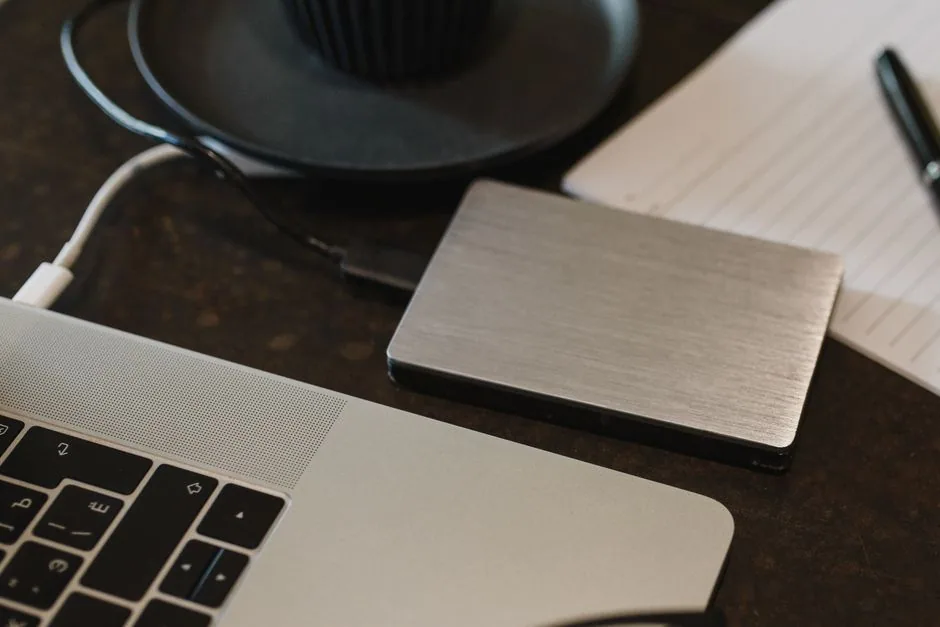
Seagate’s Series X|S guidance specifies an external USB drive with at least 128 GB capacity connected over USB 3.0 or later. A drive below those requirements may be used for media rather than game storage. Other Xbox generations can have different rules, so do not apply the Series X|S requirement to an Xbox One without checking the support page for that console.
Also check whether the drive needs its own power adapter. Connect it directly to the console while troubleshooting, rather than through a hub. Use the cable supplied with the drive or a known-good compatible cable.
Try these detection checks in order
- Keep the data safe. If the Xbox asks to format the drive, cancel unless you have backed up everything you need. Formatting for Xbox game storage erases the drive.
- Connect while the Xbox is on. Seagate documents cases where a drive connected while the console is off is not detected at startup. If the console has already booted, disconnect and reconnect the drive while it is on.
- Connect directly and try another USB port. Remove any hub or extension cable. Seagate recommends testing another console port if the drive is absent.
- Restart the console from its settings. After it has restarted, reconnect the drive and check Xbox storage settings. Avoid repeated hard power interruptions while the drive is active.
- Check for a console update. Install any available Xbox system update, restart, and check storage again.
- Inspect the drive on a computer without changing it. If Windows detects it, that confirms the USB connection and drive are at least partly responding. Do not initialize, partition, or format it in Windows as a generic fix; those actions can erase data or change the Xbox configuration. An Xbox-formatted game drive may not appear as a normal browseable Windows volume.
- Use the drive maker’s diagnostic, if needed. Seagate recommends SeaTools for its drives. For another brand, use that maker’s official diagnostic and choose a non-erasing check first. A test result does not guarantee that the data is recoverable.
If the console sees the drive but a game will not start
On Xbox Series X|S, USB storage can store games optimized for Series X|S, but those games generally must be moved to the console’s internal storage or a compatible Storage Expansion Card to play. Many backward-compatible titles, including Xbox One games, can be stored and played from USB. This is a console storage rule, not proof that the drive has failed.
Open the Xbox storage screen and confirm where the game is installed. If it is a Series X|S-optimized title on USB storage, move it to internal storage or the expansion card, then try again. Seagate’s page describes the distinction and links to Xbox Support’s storage-management instructions.

What the capacity number means
A drive advertised as 1 TB may show roughly 931 GiB when a device reports capacity in binary units. The manufacturer uses decimal TB; the console may display a binary-based value and reserve some space for its file system. That difference alone does not indicate a defective drive. The amount available for games can be lower still because the console and game-storage format use space.
When to stop troubleshooting
If the drive clicks, repeatedly disconnects, becomes unusually hot, or is absent from multiple known-good devices, stop testing if the data is important. Do not repeatedly format, run repair commands, or open the enclosure. Record the drive model, console model, connection method, and exact message, then contact the drive manufacturer or a data-recovery professional.
If a known-good compatible drive also fails on the same Xbox after the console update and direct-port checks, contact Xbox Support. The available public Xbox help pages load as JavaScript applications, so their steps may look different by console software version and region; use the current on-console menu and the official support links below.
Common questions
Can an Xbox Series X|S play every game from a USB hard drive?
No. USB storage can hold Series X|S-optimized games, but many of those games must be moved to internal storage or a Storage Expansion Card to play. Many backward-compatible Xbox One games can run from USB.
Should I format the drive if Xbox asks?
Only if you are prepared to erase the drive. Back up needed files first. If the drive contains the only copy of important data, cancel and investigate the data-preserving options before formatting.
Does a drive not opening in Windows mean it is broken?
Not necessarily. The Xbox may have formatted it for game storage, which Windows will not present as an ordinary data volume. Check whether Windows detects the physical device, and do not initialize or format it just to make it appear in File Explorer.
Does a flashing light identify a specific Xbox error?
We could not verify an official Xbox or drive-maker flashing-light code that applies across models. Check the drive manual for its exact model; do not infer a failure code from the LED alone.
Sources and further reading
- Xbox Support: External storage not detected — official console troubleshooting page (requires JavaScript).
- Xbox Support: Manage storage — official storage management page (requires JavaScript).
- Seagate: Using an external USB drive with Xbox Series X|S — requirements, game-storage behavior, and connection checks.
- Seagate: Xbox Storage Expansion Card support — model support and warranty details.
- Seagate: SeaTools downloads — official diagnostics for Seagate drives.
Image credits
- Photo by Arina Krasnikova on Pexels.
- Photo by Karola G on Pexels (via Kaboompics).
- Photo by Imthiyaz Syed on Pexels.