Short answer: there is no single “Mac SSD upgrade price.” The right cost depends on whether you are choosing storage before purchase, adding an external drive, repairing a failed part, or trying to expand a Mac you already own. Those are different jobs—and a repairable part is not automatically a supported capacity upgrade.
This guide replaces old price snapshots with a model-by-model way to compare the real choices. Apple’s current configuration options and repair-parts support can change, so check the live pages linked below before you buy or book service. Reviewed October 14, 2026.
First, identify which storage problem you have
- Buying a new Mac: compare Apple’s price for the same model, chip, memory, and other options with only storage changed. This is the cleanest way to calculate Apple’s current storage premium.
- Running out of space on a working Mac: an external SSD, a network drive, or moving large libraries may solve the problem without opening the computer.
- Storage has failed: get a repair estimate for the exact model. A replacement part restores function; it does not necessarily increase capacity.
- Wanting to replace the internal drive with a larger one: verify that the exact model supports that upgrade. Do not infer this from the words “SSD module,” “Mac Pro,” or “Apple Silicon.”
What Apple’s current specifications tell you
Apple’s configuration choices differ by Mac and chip. For example, Apple’s current MacBook Pro specifications list different starting capacities and optional SSD tiers across M5, M5 Pro, and M5 Max configurations. The Mac mini page likewise lists model-specific storage options. A capacity that appears for one chip or size is not evidence that every configuration can be ordered with it. Check the exact configuration on Apple’s live MacBook Pro specifications and Mac mini specifications pages.
To calculate the upgrade premium, keep every other option constant, record the price at the storage level you need, and subtract the base configuration price. Repeat this in the store for your country and currency. Do not reuse a price from a US article: regional taxes, available configurations, and Apple’s prices can differ and change over time.
Can you upgrade the internal SSD after purchase?
There is no universal answer for every Mac generation. Apple publishes parts support by model. Its current Mac mini parts table, for example, lists the SSD module as a supported used service part for Mac mini (2024), while the table for Mac mini (M6 or M5 Pro) does not list that module. This is a parts-repair distinction—not a promise that an owner can install a larger drive or that a replacement module increases storage capacity. Check the exact model and repair procedure before treating a part as an upgrade.
Apple’s Mac mini parts-support page also explains that used parts come from another device and may have an unknown history. Parts and repairs using used parts are not covered by Apple’s product warranty or AppleCare plan. That matters when comparing a low-cost part with an authorized repair.
For other Macs, start with the model name and year in Apple menu → About This Mac, then check the official repair manual and parts list for that exact model. Older Intel Macs vary: some have a replaceable drive, some require model-specific adapters or disassembly, and some configurations are not practical to upgrade. Mac Pro expansion cards and iMac storage kits are not interchangeable options for every Mac.
Compare the total cost—not just the drive price
| Option | Include in your comparison | Best fit |
|---|---|---|
| Choose more storage at checkout | Price difference for the same Mac configuration; local tax; expected years of use | You need the space everywhere, want a simple portable setup, or work with large active files |
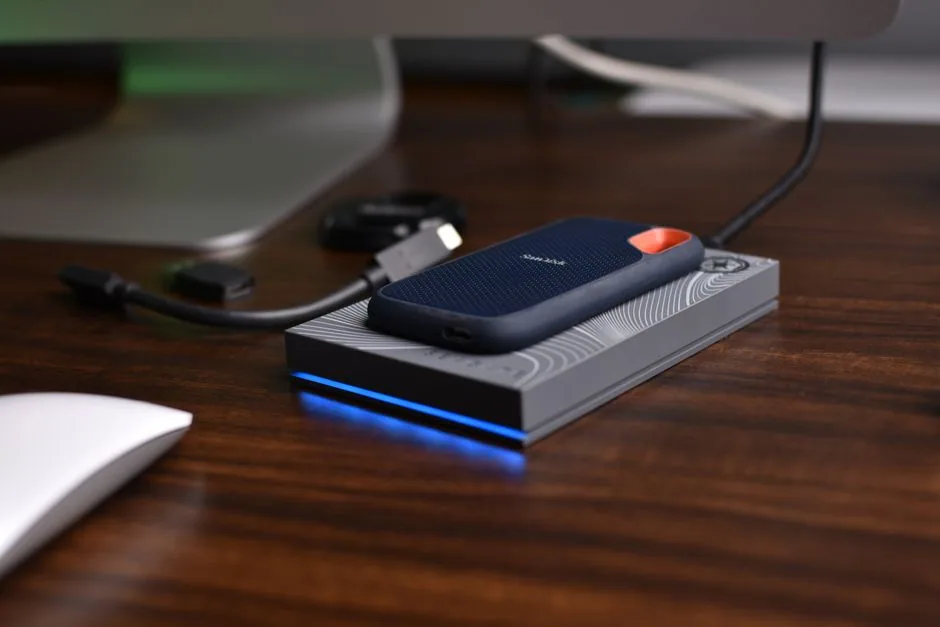
| External SSD | Drive, enclosure if needed, suitable cable/adapter, and a separate backup destination | Large photo/video libraries, project archives, or desktop use where carrying a drive is acceptable |
| Internal repair or replacement | Diagnosis, part, labor, data migration, possible diagnostic or shipping fees, and warranty coverage | The existing storage is failing or the exact model has a verified service/upgrade path |
| Free up or move data | Your time, cloud/network-storage subscription if any, and a backup copy | Downloads, duplicate exports, old installers, or infrequently used files are consuming space |
An external drive’s advertised interface speed is not the same as the speed you will measure in your workflow. The Mac, drive, enclosure, cable, file size, thermal conditions, and workload all affect results. If speed matters, test the specific drive with the files and applications you use; do not buy from a theoretical port figure alone. Apple’s current MacBook Pro specifications list the ports supported by each configuration.
Also plan a second copy of anything important. A drive attached to the Mac is convenient storage, but it can be lost, damaged, or fail along with the computer. Keep a separate backup and check that you can restore a sample file before relying on the setup.
A practical way to choose capacity
- Open System Settings → General → Storage and note what is using space. Separate active work from files you rarely open.
- Estimate the growth of the active files over the time you expect to keep the Mac. Leave room for macOS, applications, temporary files, and updates; do not plan to operate with the disk almost full.
- If buying new, compare the live local Apple configuration price for the capacity you need against the full external-drive setup.
- If considering repair, ask the provider to confirm in writing whether the quote is a same-capacity repair or a supported capacity upgrade, and whether data transfer and warranty are included.
- For an external drive, check the exact port, cable, sustained workload, portability, encryption needs, and backup plan. Test it during the return period with your real files.
When repair service is the safer route
Apple Self Service Repair is intended for people with experience repairing electronics. Apple says to read the repair manual for the exact model and repair type first; the parts and tools are specific, and some repairs call for post-repair software steps. Availability also depends on model and region. See Apple Self Service Repair before ordering anything.
For service, request a quote against the Mac’s serial number and describe whether the problem is low capacity or a suspected hardware fault. Apple’s repair page explains how to start service; independent providers may set their own prices and warranty terms. Compare the written scope, not only the headline fee. A failing drive is also a data-recovery issue: stop unnecessary writes and make a recovery plan before experimenting with parts.
The quick decision rule
Buy internal capacity for convenience and active work; choose external storage for flexible bulk space; pay for internal service when the exact model and repair scope are confirmed. Before deciding, compare same-configuration local prices, verify model-specific parts support, and include cables, labor, data migration, backups, and warranty in the total.
Sources and image credits
- Apple: MacBook Pro technical specifications — current configuration and port options.
- Apple: Mac mini technical specifications — current model-specific storage configurations.
- Apple: Parts Support for Mac mini — model-by-model repair-part support and used-parts caveats.
- Apple: Self Service Repair — model-specific manuals, tools, and repair process.
- Apple: Repair and service — service options and warranty distinctions.
Image credits
- Photo by Avinash Kumar on Pexels
- Photo by Đào Hiếu on Unsplash