
Contents
- Xbox console (Xbox One / Xbox Series X|S)
- PC and browser
- iPhone and iPad
- Android
- Smart TV
- Controller connected but the buttons don't work
- What to try no matter which device you're on
- FAQ
A corrupted cache on Android and a controller stuck in the wrong input mode on PC aren’t the same problem, but most troubleshooting lists treat them like they are. That’s the gap this guide fills: fixes sorted by device — console, PC, iPhone, iPad, Android, smart TV — plus a separate section on controllers, since that failure crosses every platform and almost nobody explains why it happens.
Here’s the short version before the detail:
- Console (Xbox One / Series X|S): restart it, check the connection, confirm service status, update app and game files.
- PC or browser: switch to Chrome, Edge, or Safari, then repair or reset the Xbox app.
- iPhone or iPad: confirm iOS 14.4 or later, use Safari for the home-screen install, check your connection speed.
- Android: clear the Xbox Game Pass app’s cache, or uninstall and reinstall it.
- Smart TV: confirm your model is on the supported list, turn on Game Mode, connect over 5GHz Wi-Fi or Ethernet.
- Controller connected but not responding: it’s probably a DirectInput/XInput mismatch, not a Bluetooth failure.
Now the reasoning behind each one.
What we checked ourselves
The figures below were not taken from other articles. We checked them ourselves on 2026-09-14 20:36 (KST).
As of 2026-09-14 20:36 (KST), directly calling Microsoft’s official real-time status API showed all 11 service categories — including ‘Cloud gaming & remote play’ — reporting ‘None’ (normal). In other words, there was no full-scale outage of Xbox Cloud Gaming itself at this point in time.
Method: We directly called the public XML API that Microsoft actually uses to display service status, via curl -s -A 'Mozilla/5.0' https://xnotify.xboxlive.com/servicestatusv6/US/en-US. Anyone can enter this URL directly into a browser’s address bar to see the raw output. We used grep to extract the <Status><Name> values from the <Category> and <Scenario> tags in the response XML.
| Category | Status | |
|---|---|---|
| Cloud gaming & remote play | None (normal) | |
| Devices & networking | None (normal) | |
| Apps & mobile | None (normal) | |
| Store & subscriptions | None (normal) | |
| Multiplayer gaming | None (normal) | |
| Games & gaming | None (normal) | |
| Account & profile | None (normal) | |
| Friends & social activity | None (normal) | |
| Sharing & broadcasting | None (normal) | |
| Online safety & family | None (normal) | |
| Support & services | None (normal) | |
| Scenario | Status | Notes |
| Launching cloud games (Id 35060) | None (normal) | |
| Wait times (Id 35059) | None (normal) | The description text reads 'wait times may be longer than usual when starting a cloud gaming session', but this is the scenario’s standard fixed notice, and the actual Status value at the time was None, not an active alert |
| Remote play (Id 37710) | None (normal) |
Caveat: this is a status self-reported by Microsoft, and it does not reflect individual routing issues specific to a particular country, ISP, or device. This status is a snapshot taken at the time of checking (2026-09-14 20:36 KST) and may change within minutes — readers should reopen the same URL at the time they read this article to see the latest value.
Actually opening 10 official per-device support pages/store links showed 9 returning a normal HTTP 200, but the Windows ‘Xbox app’ download page (xbox.com/en-us/apps/xbox-app-for-pc) returned an abnormal response: an HTTP 301 with no Location header.
Method: we checked the final response code of each URL using curl -s -o /dev/null -w '%{http_code}' -m 10 -A 'Mozilla/5.0' -L <URL>. Initially, 4 of the guessed URLs returned 404 — a web search confirmed these were not dead links but addresses we had guessed incorrectly, so we replaced them with the correct official URLs and re-verified. For the page that returned 301, we fetched the full response headers again with curl -D – to check for the presence of a Location header (34,785 bytes of body content is actually transmitted, but the status code is 301).
| Device/path | URL | HTTP code |
|---|---|---|
| Xbox app for Windows PC | xbox.com/en-us/apps/xbox-app-for-pc | 301 (no Location header) |
| iOS/iPadOS App Store | apps.apple.com/us/app/xbox/id736179781 | 200 |
| Android Play Store | play.google.com …/smartglass | 200 |
| Samsung smart TV setup guide | support.xbox.com …/set-up-cloud-gaming-on-a-Samsung-smart-tv | 200 |
| Samsung Gaming Hub troubleshooting | samsung.com/us/support/troubleshoot/TSG10002383 | 200 |
| Xbox status page | xbox.com/status | 200 |
| Xbox Cloud Gaming main page | xbox.com/en-US/cloud-gaming | 200 |
| Xbox Game Pass page | xbox.com/xbox-game-pass | 200 |
| Real-time status API | xnotify.xboxlive.com/servicestatusv6/US/en-US | 200 |
| Supported devices list document | support.xbox.com …/xbox-cloud-gaming-supported-devices | 200 |
Caveat: this is a sample of 10, a snapshot at a single point in time (2026-09-14 20:35–20:36 KST). Even the page that returned a 301 actually sends down about 34KB of content (a React-based page) along with it, so it is not a 'completely dead link' — however, this means automated tools that judge purely by status code (link checkers, monitoring, some browser prefetch logic) may treat it differently from a normal 200 page. Since curl does not execute JS, the result may differ from what an actual browser renders.
Sending 5 pings each to three Xbox-related domains from this device (one Mac) showed average round-trip latency ranging from 19.8ms to 279.9ms depending on the domain, a difference of up to 14x: www.xbox.com averaged 19.8ms, xnotify.xboxlive.com averaged 67.7ms, and xbox.com (the top-level domain used for redirects) averaged 279.9ms.
Method: we ran ping -c 5 <host> against three Xbox-related domains and recorded the average round-trip time (avg RTT) as-is. Readers can reproduce this command themselves in their own terminal, e.g. ping www.xbox.com.
| Domain | Actual routing target (reverse lookup) | Average RTT | Loss rate |
|---|---|---|---|
| www.xbox.com | e1822.dsca.akamaiedge.net (Akamai CDN) | 19.8ms | 0% |
| xnotify.xboxlive.com | e87.g.akamaiedge.net (Akamai CDN) | 67.7ms | 0% |
| xbox.com | xbox.com’s own IP (not an Akamai edge) | 279.9ms | 0% |
Caveat: the sample is just this one machine, a single measurement (5 pings each), and results vary greatly depending on the measurer’s region, ISP, and time of day. Since this is a ping against general web domains rather than the cloud gaming streaming traffic path itself, it differs from actual in-game streaming latency — however, the measurement does demonstrate the fact that 'response speed varies greatly depending on which Xbox-related address you connect to'.
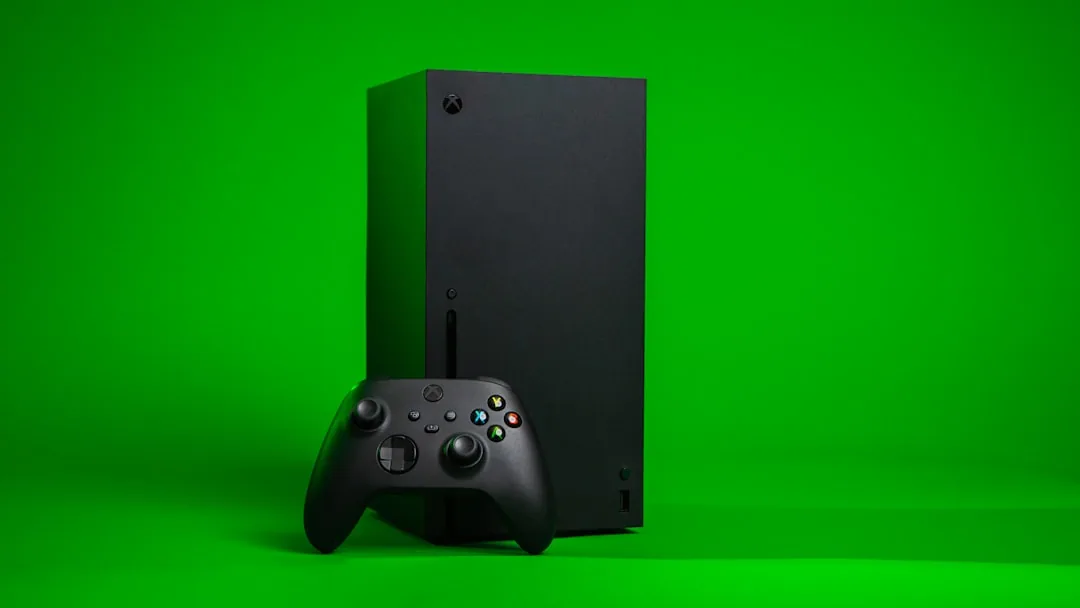
Xbox console (Xbox One / Xbox Series X|S)
If you searched “cloud gaming doesn’t work xbox one,” this is your section. The fixes that carry over to console from general troubleshooting are the basics: restart the device, check the internet connection, check service status, and make sure the app and game files are updated, according to Asurion and GamerVisit.
There’s no confirmed console-specific menu path for clearing cache or resetting the app — treat any specific steps you see elsewhere for this with some skepticism unless they come straight from Microsoft.
What is safe to try: a full power cycle. Hold the power button down until the console shuts off completely, wait, then boot it back up. It’s generic advice, but it’s also the fastest thing to rule out before you spend time on anything else.
Console is the platform with the least documented detail in this guide — worth knowing before you go hunting for a settings toggle that might not exist the way other sites describe it.
PC and browser
Xbox Cloud Gaming on PC runs through a browser, and the supported browsers are Chrome, Edge, and Safari, per iMore. If something’s broken, GamerVisit’s advice is simple: try a different one of those three before anything else.
If switching browsers doesn’t fix it, MiniTool’s fix list points at the Xbox app itself:
- Open Settings > Apps > Xbox.
- Select Advanced options.
- Choose Repair first.
- If Repair doesn’t fix it, use Reset — but back up your data first, since resetting can wipe game data.
- Separately, open the Xbox app, click your profile picture, go to Settings, and check the App updates tab for a pending version.
- Restart the PC to release resources tied up by other running programs.
That’s six concrete steps, all from MiniTool’s guide, and they cover the two most common PC-side causes: a stale app install and a browser that’s fighting the stream.
iPhone and iPad
iOS is the platform with the clearest requirements list, courtesy of iMore. You need an Xbox account, an active Xbox Game Pass Ultimate membership, and iOS 14.4 or later. For the connection itself, iMore recommends 5GHz Wi-Fi or, on mobile data, at least 10Mbps download speed.
Since there’s no native app, setup means installing a home-screen shortcut:
- Open Safari and go to xbox.com/play.
- Tap the profile icon in the top right.
- Tap the share button at the bottom of the screen.
- Select Add to Home Screen.
- Launch the new icon from your home screen.
- Sign in with your Microsoft account.
You’ll see Chrome recommended for this on iOS — that’s not what iMore’s guide actually says. Safari works best here specifically because it’s the browser that supports creating the home-screen app icon; Chrome and Microsoft Edge are also supported, but Safari is the one built for this workflow on iPhone and iPad. If your setup is failing and you’re on Chrome, try Safari before you assume something’s broken.
Android
Android’s most common fix is a cache clear, and Playbite’s guide confirms the core of the path: go to Settings > Apps, select the Xbox Game Pass app, and run Clear Cache.
Some guides insert a “Storage” step between selecting the app and clearing the cache. Playbite’s own walkthrough doesn’t treat that step as universal — it just notes the path varies by device and Android version. Expect to hunt a little inside your phone’s Settings app if the wording doesn’t match exactly.
What clearing the cache actually fixes, per Playbite: slow loading and app crashes. Two problems, one action.
If the cache clear doesn’t help:
- Check for pending updates to both the device OS and the app itself.
- If it’s still broken after that, the cause is probably something bigger — network, Xbox’s servers, or an app bug — not local storage.
- As a more thorough alternative to clearing cache, uninstall and reinstall the app. That removes cached data completely instead of partially.
Smart TV
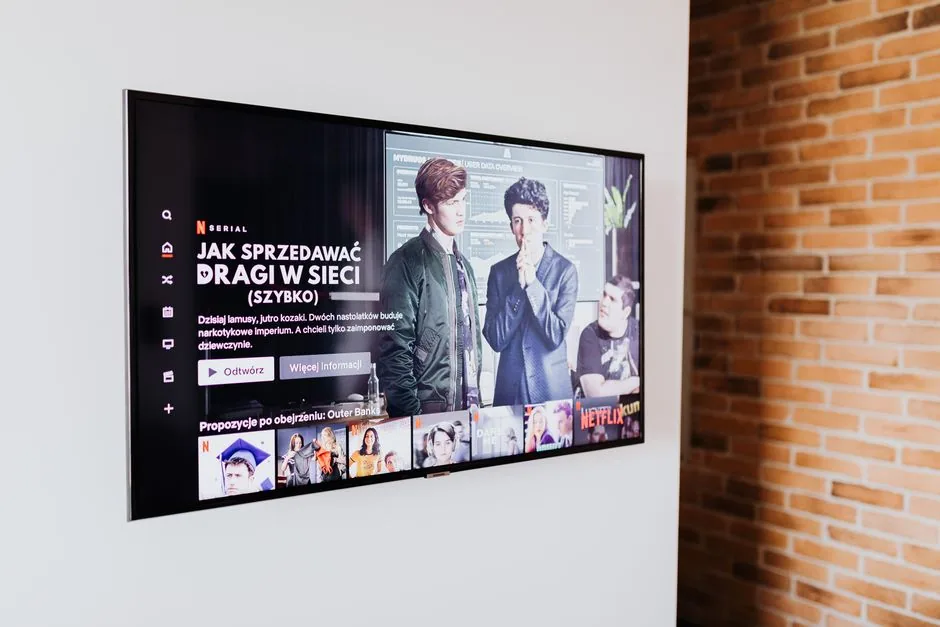
This is the platform with the most device-specific detail, and also the most ways to be locked out before you even start, according to GamingProMax.
| TV platform | Supported models | Setup note |
|---|---|---|
| Samsung | 2020 and newer smart TVs (2022+ models come with it pre-installed) | Runs through Samsung Gaming Hub |
| LG | webOS 24 and newer; some 2022–2023 models with software version 23.20.01 or later | Check your software version if the app is missing |
| Amazon Fire TV | Fire TV Stick 4K (2nd gen), Fire TV Cube (3rd gen), Fire TV 4-Series, Fire TV Omni QLED | Older Fire TV hardware is not supported |
| All supported models | — | Minimum 10Mbps, 20Mbps+ recommended, latency target under 40ms |
Connection matters more on TV than anywhere else in this list: 5GHz Wi-Fi or a wired Ethernet connection is recommended over 2.4GHz Wi-Fi.
Game Mode is the setting people skip. On Samsung, it’s under Settings > General > External Device Manager > Game Mode Settings. On LG, it’s Settings > Game Optimiser > On. What it does is disable the TV’s picture processing, which cuts display latency — and latency is the whole ballgame for cloud gaming responsiveness.
The catch nobody puts in the headline: a Game Pass subscription (Ultimate, Premium, or Essential) is required to play most titles on TV. Free-to-play games are the exception — those only need a Microsoft account, no paid tier.
Controllers on TV are less of a headache than on PC. Xbox Wireless Controller, Xbox Adaptive Controller, DualSense, and DualShock 4 all connect over Bluetooth, per GamingProMax.
Controller connected but the buttons don’t work
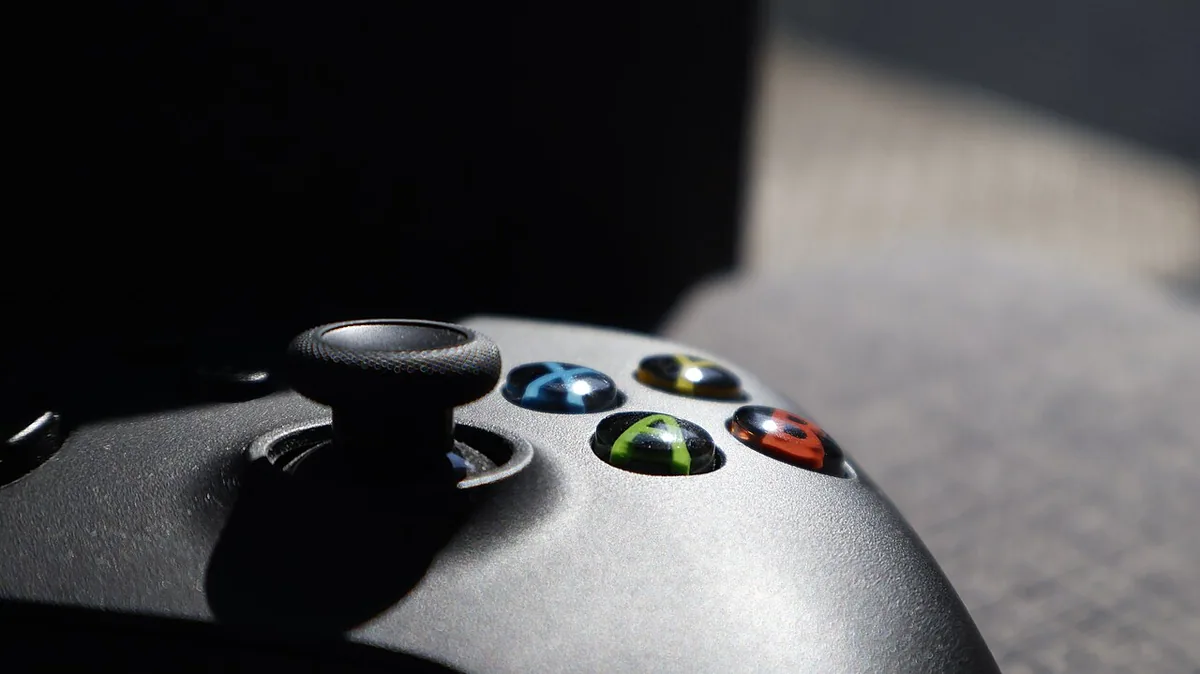
This is the one almost every other guide skips, and it’s a real search query on its own: controller shows as connected, nothing responds in-game.
The root cause, according to a Microsoft Q&A thread on the issue: some controllers default to DirectInput mode, while Xbox Cloud Gaming expects XInput. Those are two different ways of reporting button presses, and a mismatch means the game simply doesn’t see your inputs even though the OS shows the controller as paired.
The fix from that same thread: hold Menu + View together for about 3 seconds, then release. That switches the controller into XInput mode.
Bluetooth adds its own wrinkle. Connecting to a PC over Bluetooth sometimes fails to work in Game Pass titles specifically, and the fix again is making sure the controller is in XInput mode. Separately, Bluetooth itself can be unstable on PC in general — a wired USB connection or an Xbox Wireless Adapter is more reliable than Bluetooth for this.
If that doesn’t fix it, work through this list in order:
- Power-cycle the controller: hold the Xbox button for 5 to 10 seconds to turn it off, wait 15 seconds, then turn it back on.
- Replace or charge the battery.
- Check for pending Windows updates.
- Re-pair over Bluetooth from scratch.
- Update controller firmware through the Xbox Accessories app.
- Test the controller on a different device or game to confirm it’s a hardware problem and not a software one.
You’ll also see the claim that only the official Xbox Wireless Controller works in-browser, and that any Bluetooth-only third-party controller fails outright unless it’s wired in over USB. The Microsoft Q&A thread usually cited for that doesn’t actually say it — it describes the DirectInput/XInput mismatch and general Bluetooth flakiness, not a hard controller allowlist.
What to try no matter which device you’re on
Seven fixes apply regardless of platform, per Asurion, GamerVisit, and MiniTool:
- Check Xbox service status if nothing else is working — this guide isn’t a live outage tracker, but it’s worth a quick look before you troubleshoot your own setup for an hour.
- Turn off any VPN or firewall that might be interfering with the stream.
- Lower the streaming quality setting if the connection is marginal.
- Close background apps competing for bandwidth or processing power.
- Try a completely different device to isolate whether the problem is the device or your account/network.
- Log out and back in.
- Reinstall the app as a last resort.
None of these are exciting, but the boring fix is usually the right one to try before you go chasing something exotic.
FAQ
Which browsers work for Xbox Cloud Gaming on PC? Chrome, Edge, and Safari, per iMore. If one isn’t working, try another before troubleshooting further.
Why is my controller connected but not responding in-game? Most likely a DirectInput/XInput mismatch, not a Bluetooth failure. Hold Menu + View for about 3 seconds to switch to XInput mode.
Do I need a paid Game Pass subscription to use cloud gaming on a smart TV? For most titles, yes — Ultimate, Premium, or Essential. Free-to-play games only require a Microsoft account.
What’s the minimum internet speed for Xbox Cloud Gaming? It depends on the device. GamerVisit puts the mobile figure at a 10Mbps minimum, 25Mbps or higher recommended. GamingProMax’s TV figure is a 10Mbps minimum, 20Mbps+ recommended, with latency under 40ms as the target. Console and PC don’t have a separately published number.
My guess is the controller mode mismatch trips up more people than any of these lists let on — it looks exactly like a broken connection when it isn’t, and nothing in the UI tells you otherwise. The console settings path is still the one hole in this guide: until Microsoft documents a specific menu path, the boring fixes — restart, reconnect, update — will beat chasing a toggle that might not exist.
Sources
- Asurion — Xbox Cloud Gaming not working: 7 quick ways to fix it — https://www.asurion.com/connect/tech-tips/xbox-cloud-gaming-not-working/
- iMore — How to set up Xbox Cloud Gaming (xCloud) on iOS — https://www.imore.com/how-set-xbox-cloud-gaming-xcloud-ios
- GamerVisit — Xbox Cloud Gaming Not Working Today? 15 Fixes for Lag, Crash & Login — https://gamervisit.com/why-xbox-cloud-gaming-not-working/
- Microsoft Q&A — My xbox wireless controller is connected but none of the buttons work on xbox cloud gaming — https://learn.microsoft.com/en-us/answers/questions/3867481/my-xbox-wireless-controller-is-connected-but-none
- MiniTool — Xbox Cloud Gaming Not Working/Loading? Solve It Now! — https://www.minitool.com/news/xbox-cloud-gaming-not-working.html
- GamingProMax — Xbox Cloud Gaming on TV: How to Play on Any TV — https://gamingpromax.com/xbox-cloud-gaming-on-tv/
- Playbite — How to Clear Cache of Xbox Game Pass App — https://www.playbite.com/q/how-to-clear-cache-of-xbox-game-pass-app
Image credits
- Photo by [Billy Freeman](https://unsplash.com/@billyfreeman) on Unsplash
- *Black Xbox One X wireless controller, 1* by Kent Madsen, licensed under CC BY-SA 2.0 (via Openverse)
- Photo by [https://kaboompics.com/](https://www.pexels.com/@karola-g) on Pexels