Contents
- Is It Normal for a New Laptop to Overheat?
- Normal CPU and GPU Temperatures for Laptops, at a Glance
- What You Need Before You Start Diagnosing
- The Most Common Everyday Causes of a Hot New Laptop
- 9 Signs Your New Laptop's Heat Isn't Normal
- Where This Gets Confusing: Brand Tools and Design Limits
- Fixes That Actually Bring the Temperature Down
- Fixes and What They're For
- FAQ
Idle temperatures of 45–60°C and load temperatures in the high 80s to low 90s Celsius are both normal for laptops — the cramped case and small heatsink make sure of that. What’s not normal: heat that shows up while the machine is doing nothing, a fan that never spins down, or a shutdown out of nowhere. This guide covers the actual numbers, the everyday causes, and where “just warm” turns into “something’s wrong.”
What we checked ourselves
Checked directly, one source at a time, on 2026-09-14 (KST, exact minute not logged by fetch tool).
2026년 노트북에 흔히 쓰이는 CPU 4종(Intel Core i5-1240P, i7-13700H, i9-13900H, AMD Ryzen 7 7840HS) 모두 제조사가 공시한 열 한계(TJUNCTION/Tjmax)는 동일하게 100°C — 즉 부하 시 80~90도대까지 오르는 건 설계 사양 안이며 '과열'이 아니다.
Method: 각 제조사 공식 스펙 페이지를 자동 웹 요청(직접 열람 )으로 직접 열어 TJUNCTION/Max Operating Temperature, Processor Base Power(TDP), Max Turbo Power 필드를 그대로 읽었다. Intel 3개 SKU 페이지(intel.com/…/specifications.html)는 정상 응답했다. AMD Ryzen 7 7840HS의 amd.com 공식 스펙 페이지는 동일 방식으로 3회 연속 시도했으나 매번 60초 타임아웃으로 직접 확인에 실패했고, 대신 LaptopMedia.com의 스펙 집계 페이지와 AMD 공식 커뮤니티 포럼 스레드(community.amd.com, 'Ryzen 7 7840HS High Temp')를 교차 확인해 동일한 100°C 값을 확보했다 — 이 값만 2차 출처임을 명시한다.
| CPU (노트북용) | 공식 Tjunction/최대 동작 온도 | Base Power(TDP) | Max Turbo Power | 출처 | 직접 접속 여부 |
|---|---|---|---|---|---|
| Intel Core i5-1240P | 100°C | 28W | 64W | intel.com SKU 132221 | 예 (직접 확인) |
| Intel Core i7-13700H | 100°C | 45W | 115W | intel.com SKU 232128 | 예 (직접 확인) |
| Intel Core i9-13900H | 100°C | 45W | 115W | intel.com SKU 232135 | 예 (직접 확인) |
| AMD Ryzen 7 7840HS | 100°C | 35W | (미확인) | amd.com 공식 페이지 접속 실패(타임아웃 3회) → LaptopMedia.com + AMD Community 포럼으로 교차 확인 | 아니오 (2차 출처) |
Caveat: 표본은 노트북에 흔한 최근 세대 x86 CPU 4종에 한정된다. 더 오래된 세대(10세대 이전 Intel, Ryzen 5000 이전)나 ARM 기반 칩(Apple M-시리즈, Snapdragon X)은 열 설계가 달라 Tjmax·전력 수치가 다를 수 있으므로 이 표를 그대로 일반화하면 안 된다. AMD 수치 하나는 제조사 페이지 직접 접속에 실패해 2차 출처로 확인한 값이라 완전한 1차 확인은 아니다.
동일한 노트북 CPU 라인업 안에서도 상급 모델(i7/i9 H-시리즈, Max Turbo 115W)은 보급형(i5 P-시리즈, Max Turbo 64W)보다 최대 약 1.8배 많은 열을 순간적으로 방출해야 한다 — 같은 두께의 노트북이라면 상급 CPU 모델이 체감상 훨씬 더 뜨겁게 느껴지는 게 정상이라는 뜻이다.
Method: 위에서 직접 확인한 Intel 공식 Max Turbo Power 값을 그대로 나눈 계산: 115W(i7-13700H) ÷ 64W(i5-1240P) = 1.797… ≈ 1.8배. 독자는 자신의 CPU 모델명을 intel.com/ark 또는 amd.com 스펙 페이지에서 찾아 Max Turbo Power 값을 같은 방식으로 나눠보면 재현할 수 있다.
계산식: Max Turbo Power(i7-13700H) ÷ Max Turbo Power(i5-1240P) = 115 ÷ 64 = 1.797 (약 1.8배) 비교: Base Power 기준으로는 45W ÷ 28W = 1.607 (약 1.6배)
Caveat: 이는 순간 최대 전력(turbo) 기준 열 방출량 비교일 뿐, 실사용 시 지속 소비전력·쿨링 설계(팬, 베이퍼챔버, 섀시 재질)에 따라 체감 발열은 크게 달라진다. 두 CPU가 동일한 노트북 섀시/쿨러에 들어간다는 보장도 없다.
Is It Normal for a New Laptop to Overheat?
Short answer: some heat, yes. A shutdown or a fan stuck at max speed for no reason, no.
Cramped cases and small heatsinks are why laptops run hotter than desktops by design — idle readings around 45–60°C don’t ring alarm bells the way they would on a tower. General guidance for idle temps sits closer to 35–50°C, but laptops routinely run above that simply because of the enclosure they’re stuffed into.
Under real load — video calls, browser tabs stacking up, anything CPU-heavy — high 80s to 90s Celsius is common on laptops and still typical. That’s a wide range, and it’s the one that trips people up: “high 80s” sounds alarming if you’re used to desktop numbers.
New doesn’t mean immune, either. A fresh laptop can run hot from day one if it’s sitting on a blanket, if background software hasn’t settled yet, or if the workload is genuinely heavy. Age isn’t the deciding factor here. Behavior is.

Normal CPU and GPU Temperatures for Laptops, at a Glance
There’s no single official chart for “normal laptop temperature” — sources don’t fully agree, and manufacturers don’t publish a unified number either. The table below synthesizes them; treat it as a general guide, not a spec sheet for your exact chip.
| State | Typical range | Source note |
|---|---|---|
| Idle | 45–60°C (one source says 40–60°C, general guidance says 35–50°C) | Laptop-specific vs. general desktop guidance |
| Under load | High 80s–90s°C | Common and usually normal on laptops |
| Possibly concerning | Consistently above 45–50°C at idle | Flagged as a rule of thumb, not a hard cutoff |
| Probably concerning | Consistently above 90–105°C under full load | Flagged as a rule of thumb, not a hard cutoff |
For reference points on the ceiling: most modern CPUs are rated to roughly 95–100°C (their Tjmax) before they throttle themselves to protect the chip. Newer Intel chips top out around 100–105°C, and newer AMD chips are usually rated closer to 89–95°C. Desktop-context bands — idle 30–50°C, web and streaming 40–60°C, gaming 60–85°C, video editing 70–90°C, stress testing up to 90–105°C — are useful for comparison, but they’re desktop numbers, not laptop ones.
The exact safe ceiling depends on your specific processor. Checking the manufacturer’s spec sheet beats relying on a generic range.
What You Need Before You Start Diagnosing
You don’t need much. A few things make the next steps faster.
Before you start: – Monitoring software that reads actual core temperatures (HWMonitor is one commonly cited option) – Task Manager on Windows, or Activity Monitor on macOS, to spot runaway processes – A can of compressed air and a microfiber cloth – Access to your laptop manufacturer’s official support and driver page – A hard, flat surface to test on — not the couch
Skipping the monitoring step is the most common mistake. Guessing that a laptop is “too hot” by touch is unreliable; checking the actual numbers first tells you whether you’re chasing a real problem or a normal one.
The Most Common Everyday Causes of a Hot New Laptop
The same handful of causes come up again and again — dust tops nearly every list.
- Dust, lint, or pet hair blocking vents, fan blades, and heatsink fins — the single most frequently cited cause
- Running the laptop on a bed, couch, blanket, or lap, which blocks the bottom intake vents
- Genuinely demanding workloads: video editing, 3D applications, large downloads, code compilation
- Background processes or runaway browser tabs eating CPU cycles even when the laptop looks idle
- Outdated BIOS, firmware, or thermal-management drivers affecting how the fan responds
- Hot ambient room temperature, direct sunlight, or an enclosed space cutting into cooling effectiveness
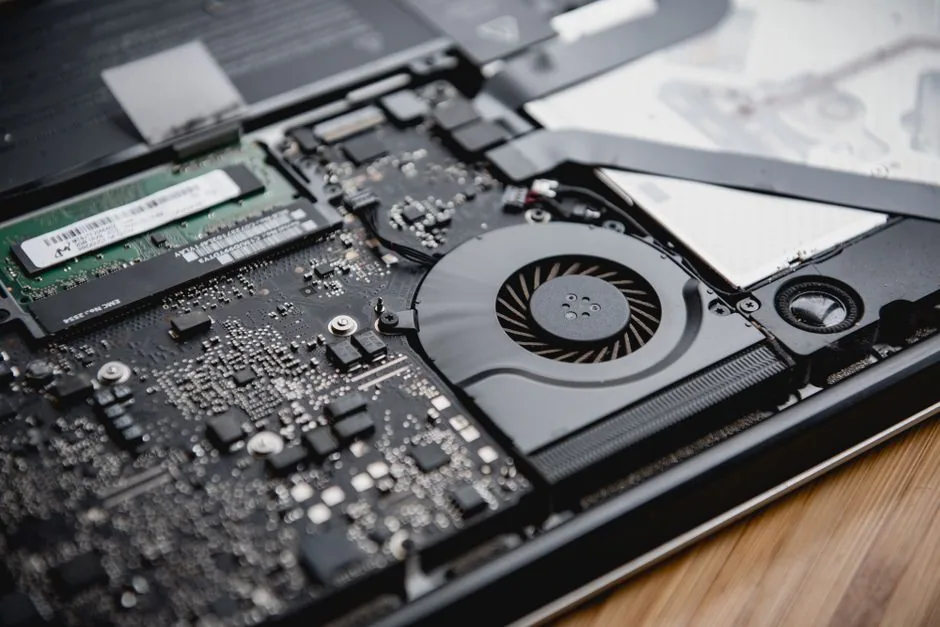
- A fan that’s clogged, failing, or simply not spinning
- Aging or degraded thermal paste between the CPU/GPU and the heatsink — more common on older machines, but not exclusive to them
- A compact, thin chassis that inherently limits heatsink and fan space, causing a boost-then-throttle pattern even on healthy hardware
- Battery swelling or deterioration, which can raise the keyboard or warp the chassis and indirectly worsen heat — this one is a safety issue first, not primarily a thermal fix
That’s ten separate causes feeding into one symptom. Worth remembering before assuming the worst.
9 Signs Your New Laptop’s Heat Isn’t Normal
This is the list that actually matters. If none of these apply, the laptop is probably just running the way laptops run.
- Heat that persists while the laptop is nearly idle
- The fan running at maximum speed continuously, even after you’ve closed anything demanding
- Severe stuttering that gets worse the longer the laptop stays hot — a sign of thermal throttling
- A thermal or fan warning message displayed by the system itself
- Unexpected shutdowns or restarts triggered by the machine’s own thermal protection
- Grinding, clicking, or scraping noises from the fan — a mechanical failure, not a software one
- Chassis warping, a raised keyboard, or a swollen appearance — treat this as urgent and battery-related, not a cleaning fix
- A burning smell, smoke, or any liquid leakage — stop using the laptop immediately
- A chassis too hot to touch safely, anywhere on the case
Numbers six through eight aren’t “keep an eye on it” situations. Those are stop-using-it-now situations.
Where This Gets Confusing: Brand Tools and Design Limits
Here’s the part most write-ups skip entirely: what your specific laptop maker actually gives you to work with.
Dell is the only manufacturer here with clearly documented, official guidance. It explicitly warns against using a vacuum on a laptop’s vents, citing static electricity risk, and recommends compressed air held upright along with a microfiber cloth. Dell’s SupportAssist tool can scan for and install driver and BIOS updates and run a fan diagnostic test, and Dell Optimizer or Power Manager offers a “Cool” thermal mode on some models.
Other manufacturers probably offer something comparable, but there’s no confirmed source tying Asus, HP, or Acer to specific tools — so this guide won’t promise a matching walkthrough for them. If your laptop isn’t a Dell, check that manufacturer’s own support page for a fan diagnostic or driver bundle before trying anything more invasive.
One structural point applies across brands, though: a thin, compact chassis inherently limits how much heatsink and fan space a laptop can have. That alone can cause a boost-then-throttle pattern — temperatures spike, the system pulls back performance, temperatures drop — on a completely healthy machine. It’s a design tradeoff, not a defect.
Fixes That Actually Bring the Temperature Down
Start with cleaning and placement before touching any settings.
1. Clear the vents. Use canned or compressed air on accessible external vents only, with the laptop powered off. Skip the vacuum — the static risk is real — and skip mouth-blowing, which introduces moisture. If the fan blades are directly accessible, a cotton swab with isopropyl alcohol works; if using canned air near the blades, hold them still so they don’t overspin.
2. Fix the surface. Keep the laptop on a hard, flat surface. Avoid blankets, pillows, or using it directly on your lap. A laptop stand or tray improves under-chassis airflow, and an external cooling pad helps when the internal cooling system works fine but needs extra sustained airflow — pick one that blows air upward, matching the laptop’s own intake direction, and sits stable.
3. Adjust software. Check Task Manager or Activity Monitor for runaway processes. Disable unnecessary startup programs. Switch the power plan from “Best Performance” or “High Performance” down to “Balanced” or a power-efficiency mode — this alone cuts heat generation. Reducing screen brightness trims power draw too.
4. Update everything. Pull the latest drivers, chipset software, and BIOS or firmware from the manufacturer’s official support page. Stay on AC power during any BIOS update and don’t interrupt it partway through.
One caveat: the three-to-six-month cleaning cadence and the 15-to-20-minute cooldown period after heavy use each come from a single source. Treat both as rough suggestions, not fixed rules.
Fixes and What They’re For
| Fix | Best for | Note |
|---|---|---|
| Compressed air on vents | Dust buildup, the most common cause | Laptop powered off; avoid vacuums |
| Hard surface / laptop stand | Blocked bottom intake | Free, immediate |
| Cooling pad | Sustained airflow when internals are fine | Match intake direction |
| Driver/BIOS update | Poor fan control from outdated firmware | Stay on AC power during updates |
If a fan is suspected to have failed outright — grinding noise, zero RPM, warning message — running the manufacturer’s own hardware diagnostic and recording any error code is the next step before contacting support.
FAQ
Is it normal for a laptop to run hot when it’s brand new? Yes, within the ranges above. Idle around 45–60°C and load in the high 80s to 90s Celsius are both considered typical for laptops, largely because of their compact cases — this applies regardless of the laptop’s age.
What temperature is too hot for a laptop CPU? There’s no single universal cutoff. Rules of thumb flag consistently over 45–50°C at idle as possibly concerning and consistently over 90–105°C under full load as probably concerning, but the real ceiling depends on your specific processor’s rated maximum, which is closer to 95–100°C for many modern chips.
How often should I clean the vents on my laptop? This comes from a single source, so treat it as a rough suggestion rather than a fixed rule: roughly every three to six months, more often if you’re in a dusty environment or have pets.
Should I use a cooling pad on a new laptop? It can help if the internal cooling system is functioning normally but you need extra sustained airflow during heavier use. It’s not a fix for a genuinely failing fan or a chassis packed with dust — clear those first.
Nine warning signs is a lot to keep in your head, but only a handful actually apply to most people: heat at idle, a fan that won’t quit, and unexpected shutdowns cover the majority of real complaints. The rest — the smell, the warping, the grinding — are rare and unmistakable when they happen.
I’d lean toward checking actual temperatures with monitoring software before assuming a new laptop is defective — most of the time, the machine is just doing what its case size allows. The ranges in the table above are synthesized from a couple of sources rather than one unified spec, so if you want a precise ceiling, check your exact processor’s datasheet instead.
Image credits
- Photo by Anna Tarazevich on Pexels
- Photo by KIEU TRUONG on Pexels