Contents
- What we checked ourselves, and when
- Where Apple, Seagate and WD give different answers
- What you need before you start
- Steps: erase the drive to APFS in Disk Utility
- Steps: point Time Machine at the drive
- Where people get stuck
- If you also need Windows, or an older Mac
- Quick answers
Time Machine wants APFS, and your new drive probably isn’t. In WD’s own factory-format table, only 15 of 42 entries (36%) can skip the erase. None of the 32 non-G-DRIVE entries ships as APFS.
Apple calls APFS the preferred format, and Seagate’s knowledge base says exFAT is not compatible with Time Machine. The counterpoint: Apple still supports HFS+, so an older Mac-formatted drive is not broken. The rest of this piece is the count behind those numbers, the steps, and the spots where the vendors’ pages disagree. My view: the erase prompt is a nuisance, not a defect. Copy your files off first and it costs you nothing.
What we checked ourselves, and when
Checked: 2026-09-21, 16:55 KST. Vendor pages opened directly. WD’s table counted row by row. One Mac queried with a read-only command.
Start with what drives ship with. WD’s support article “Format an External Drive with the Original File System on Windows and macOS” (Answer ID 25242, page shows “Updated 06/22/2026”) lists 42 drive entries. We counted the Format column row by row.
| Factory format (per WD table) | Entries | Which models (examples) |
|---|---|---|
| NTFS | 13 | My Passport (WDBYNN…), Elements SE, easystore Desktop |
| exFAT | 12 | My Passport Ultra 20th Anniv. (WDBJXT), My Passport USB-C, WD Elements (USB-C), Gaming Drive |
| APFS | 10 | Only G-DRIVE / G-RAID lines (all 10) |
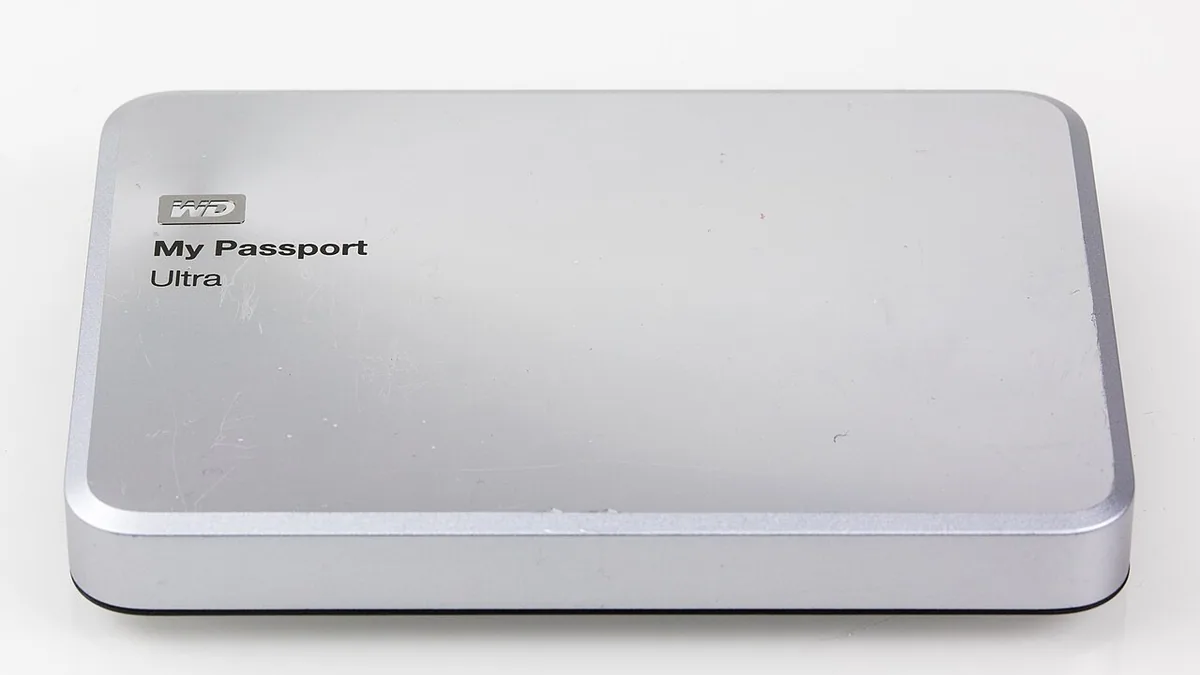
| HFS+ | 5 | My Passport for Mac, My Passport Ultra for Mac, My Book for Mac, My Book Pro, My Book Thunderbolt Duo |
| FAT32 | 2 | My Passport AV-TV, My Book AV-TV |
| Total | 42 |
The math: usable without an erase means HFS+ plus APFS. 5 + 10 = 15. 15 / 42 = 35.7%. The other 27 (64.3%) ship as NTFS, exFAT or FAT32.
Take out the 10 G-DRIVE / G-RAID entries and 32 remain: My Passport, My Book, Elements, easystore, Gaming. Zero of those 32 ship as APFS. Even the “for Mac” models are listed as HFS+. (G-DRIVE is on WD’s list because WD’s brand family includes SanDisk Professional G-DRIVE.)
“Usable without an erase” is our classification. It rests on Apple’s Time Machine disk-types page and on WD’s Time Machine article (Answer ID 18952, updated 06/02/2026).
Two limits. WD’s table is keyed by model number, so newer SKUs may ship differently. And “for Mac means HFS+” has one source, that same table. The erase behavior below is quoted from WD and Apple, not observed.
Where Apple, Seagate and WD give different answers
Here are the vendors’ own sentences, side by side.
| Source | What it says |
|---|---|
| Apple, Time Machine disk types | “APFS or APFS Encrypted disks are the preferred format for a Time Machine backup disk.” Also: “Time Machine still supports backups on Mac OS Extended format (Journaled)…” |
| Seagate KB, exFAT on macOS 26 and later | “ExFAT is not compatible with Time Machine. If you are wanting to use Time Machine, format your drive APFS.” |
| Seagate KB, general | “Newer Seagate and LaCie branded external drives come preformatted with the exFAT file system…” |
| WD, Time Machine article | “macOS Time Machine works with External drives formatted as APFS.” |
| WD, format steps | “External drives ship formatted as NTFS (Windows), HFS+ (macOS), or exFAT (Windows and macOS).” |
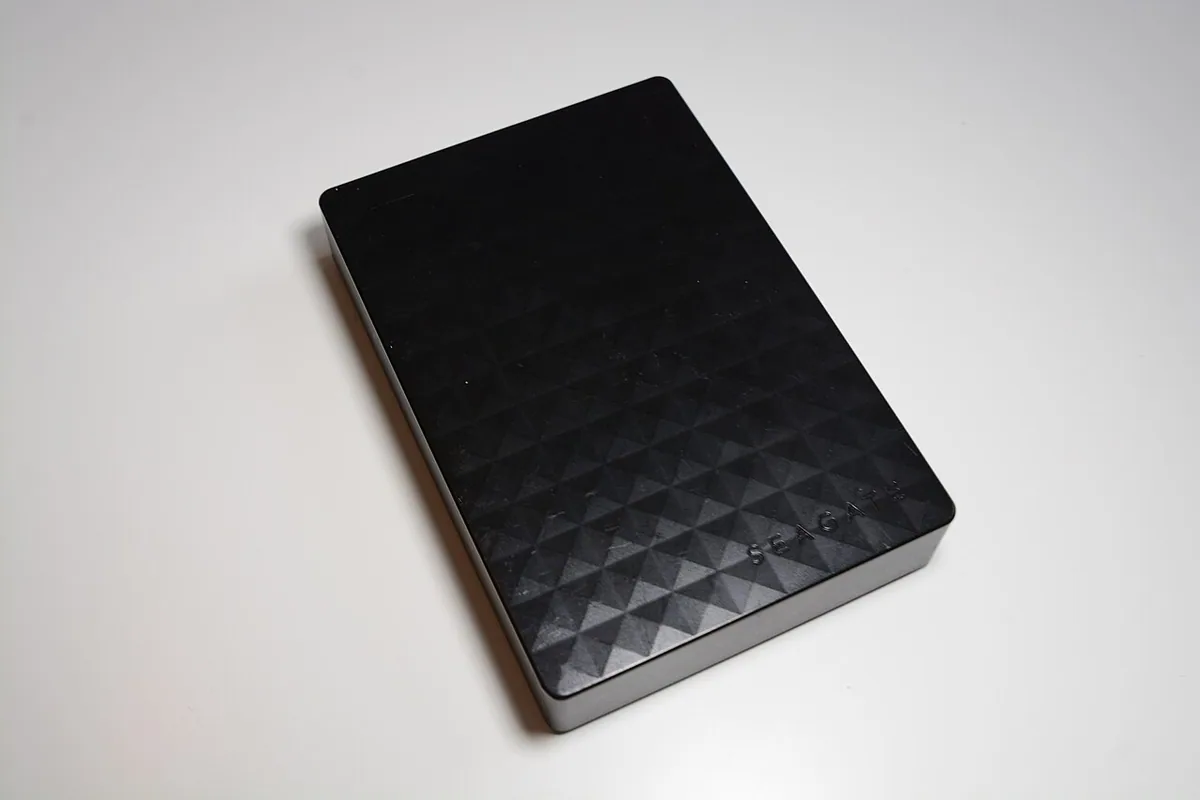
Read that table twice. Seagate says newer drives ship exFAT and that it does not work with Time Machine. Its Expansion Portable manual goes further, saying exFAT is neither compatible with nor recommended for built-in backup tools such as Time Machine.
So the box in your hand and the vendor’s own backup guidance point in opposite directions.
WD contradicts itself in a smaller way. Its table lists “for Mac” drives as HFS+, while its Time Machine article talks only about APFS. Apple says HFS+ (Mac OS Extended, Journaled) is still supported. An HFS+ drive is fine to Apple; WD’s article says anything not APFS gets erased.
The quotes come from English-language pages read on 2026-09-21, and support pages get edited.
What you need before you start
Checklist – The drive, connected to your Mac – A copy of anything on it you want to keep – A Mac running a version of macOS that offers APFS (10.13 High Sierra or later) – No plan to plug it into Windows afterward, or a plan for that (see the last section)
Erasing deletes everything. Apple says: “If you have any files you want to save, copy them to another storage device before erasing a device.” Seagate says the same. WD’s article puts it in capitals: “The process is Data Destructive and cannot be undone.”
You do not need to know what format the drive ships in. The erase steps are the same either way.
If you want to know anyway, check it yourself. In Disk Utility, select the drive’s volume in the sidebar and read the format in the detail pane, or select the drive in Finder and choose File → Get Info. I did not check the factory format of individual Seagate models. The only Seagate statement I confirmed is the general one, that newer drives come preformatted exFAT. WD’s table is the only per-model source I have, so for a Seagate drive, your own check beats my guess.
One version note. APFS is the file system used by macOS 10.13 or later, and Seagate’s manual says APFS can only be read by Macs running High Sierra or later. Seagate’s manual also says APFS became the Time Machine default after macOS Big Sur, while HFS+ was the default before Catalina.
Steps: erase the drive to APFS in Disk Utility
These steps come from Apple’s erase guide and Seagate’s macOS 26 article. We did not run an erase for this piece.
Step 1 — Show all devices. In Disk Utility: View → Show All Devices.
Step 2 — Pick the drive. Select the storage device itself in the sidebar, then click Erase.
Step 3 — Set the scheme. In the Scheme pop-up, choose GUID Partition Map. Seagate’s article says the same.
Step 4 — Set the format. In the Format pop-up, choose APFS. Apple’s description: “The file system used by macOS 10.13 or later.”
Step 5 — Name it. Something you will recognize in the Time Machine list.
Step 6 — Optional security options. Apple lets you overwrite deleted data several times. SSDs do not offer this in Disk Utility, and Apple recommends FileVault encryption there.
Step 7 — Erase, then Done.
Seven steps. The whole erase is one decision, at step 4.
For the record, here are the file systems diskutil listFilesystems lists on this Mac (macOS 26.6.2): 11 file systems plus a “Free Space” placeholder.
| Family | Count |
|---|---|
| APFS, Case-sensitive APFS | 2 |
| ExFAT | 1 |
| MS-DOS (FAT), FAT12, FAT16, FAT32 | 4 |
| HFS+ variants | 4 |
| Total | 11 |
No NTFS. A Mac can read it but cannot format to it. That is one machine and one macOS version, so it says nothing about older releases.
Steps: point Time Machine at the drive
Path: Apple menu → System Settings → General → Time Machine → Add Backup Disk → pick the disk → Set Up Disk.
Next, Apple’s setup asks how much space Time Machine may use, and whether to encrypt the backup. If you encrypt, you enter a password for the backup disk.
One rule matters here. Apple: “The entire APFS volume is reserved for Time Machine backups.” Plan that volume as backup-only.
If you skipped the Disk Utility erase, you may still be fine. Apple says that if the new backup disk is not already APFS, you get the option to erase and reformat it. WD’s article says Time Machine “will automatically erase the drive and reformat it to APFS if the drive is formatted with something else.” Apple’s wording is an option; WD’s is automatic. Another place the two disagree.
Apple’s page also says Time Machine can’t back up to a disk formatted for Windows. Plug one in and you can reformat it to a Mac format. Apple’s warning: “Erasing permanently removes all files on the disk, so do it only if you no longer need the files or have copied them to a different disk.”
Where people get stuck
- The drive mounts but will not accept files. WD says NTFS mounts as read-only on macOS, and that macOS cannot write to a read-only drive. The fixes WD names are a third-party driver or reformatting to exFAT. Seagate’s manual agrees a Mac can read NTFS but cannot write to it by default.
- You want one drive for backups and shared files. Apple says the whole APFS volume is reserved for Time Machine, so shared files cannot live on that volume. Give them their own volume; see the last section.
- exFAT drive gets ejected in a hurry. Seagate warns that exFAT drives must be safely ejected to prevent corruption because it is not a journaled file system. That is a data-safety reason to keep backups off it.
If you also need Windows, or an older Mac
APFS is the answer for one job: a Mac-only Time Machine backup. Other jobs differ.
| Your situation | Format the vendors point to | Catch |
|---|---|---|
| Mac-only, Time Machine backups | APFS (Apple: preferred) | Whole volume is reserved for Time Machine |
| Existing HFS+ / Mac OS Extended (Journaled) backup disk | Apple: still supported | WD’s article only mentions APFS |
| Files shared between Mac and Windows | exFAT (WD: both can read and write) | Not compatible with Time Machine, per Seagate |
| One drive for both jobs | Two volumes: APFS for Time Machine, exFAT for sharing | Only the APFS volume is a Time Machine target |
| Drive formatted NTFS | Read-only on macOS | Needs a driver or a reformat |
Seagate says that to switch between Mac and Windows you should format on the Mac, because not all Windows cluster sizes are supported by macOS, which can stop the drive from mounting. Windows cannot natively read or write APFS or HFS+ volumes.
Apple’s Disk Utility page sorts the Windows formats by size: exFAT for volumes over 32 GB, MS-DOS (FAT) for 32 GB or less.
exFAT is a fine format. It is the wrong one for this job.
One drive for both jobs: partition, don’t erase whole
Apple says you can add another APFS volume to the disk in Disk Utility for other files. For Windows sharing you want exFAT rather than APFS, so split the drive instead of erasing it as one piece. This is a sketch from Apple’s Disk Utility pages; I did not run it for this piece.
- Copy off anything you want to keep. Partitioning a drive that already holds data is not something to trust to a single click.
- In Disk Utility, select the drive (View → Show All Devices) and click Partition, not Erase.
- Make one volume APFS and name it for Time Machine. Make the other ExFAT and name it for sharing. Set the sizes, then apply.
- In System Settings → General → Time Machine, add only the APFS volume. The exFAT volume is for Windows and Mac file transfers, not backups.
Give the APFS volume the size you want Time Machine to have. Windows will see the exFAT volume but not the APFS one.
Quick answers
Can I use the drive as it came out of the box? For Time Machine, probably not. In WD’s table, 27 of 42 entries (64%) ship as NTFS, exFAT or FAT32, and Apple says Time Machine can’t back up to a disk formatted for Windows. Seagate says its newer drives come preformatted exFAT.
Is HFS+ still okay? Yes. Apple says Time Machine still supports Mac OS Extended (Journaled), though APFS is preferred. Seagate’s manual dates HFS+ to 1998 and says it was the macOS default through Sierra.
Can Time Machine use exFAT if I have no other choice? Seagate says no: “ExFAT is not compatible with Time Machine.” Its Expansion Portable manual adds that exFAT is neither compatible with nor recommended for built-in backup tools.
Does every WD “for Mac” drive ship as HFS+? That is what WD’s table says, by model number. It may not match what is in stores today.
Where this leaves us
I would not wait for WD and Apple to line up their Time Machine wording. Erase to APFS, name the drive, and add it in System Settings. Today, none of the 32 non-G-DRIVE entries in WD’s table ships as APFS, so plan on the erase. If the same drive must also carry files for Windows, partition it into an APFS volume and an exFAT volume instead of erasing it whole.
Sources
- Apple Support, Types of disks you can use with Time Machine on Mac (mh15139)
- Apple Support, File system formats available in Disk Utility on Mac
- Apple Support, Erase and reformat a storage device in Disk Utility on Mac
- Apple Support, Choose a backup disk and set encryption options on Mac (mh11421)
- WD, Format an External Drive with the Original File System on Windows and macOS (Answer ID 25242)
- WD, Time Machine Backup and Restore from macOS to a WD External Drive (Answer ID 18952)
- WD, Steps to Format a Drive for Use with Windows or macOS (Answer ID 8200)
- Seagate KB, How to format your drive (220151en)
- Seagate Expansion Portable User Manual, Optional Formatting and Partitioning
- Seagate KB, How to format your drive ExFAT on macOS 26 (Tahoe) and later
- Own measurements, 2026-09-21: WD table row count, vendor page comparison,
diskutil listFilesystems
Image credits
- Photo by Budget Bizar on Pexels
- My Passport Ultra Metal Edition-2969 by <bdi><a href=”https://www.wikidata.org/wiki/Q108103612″ clas, licensed under CC BY-SA 4.0 (via Openverse)
- Seagate SRD0NF1 portable hard drive HS1 by <a href=”//commons.wikimedia.org/wiki/User:IagoQnsi” title=”, licensed under CC BY 4.0 (via Openverse)