If your PS5 does not show an M.2 SSD after installation, first check whether the drive is supported and seated correctly. Sony’s guidance distinguishes a recommended sequential read speed from a mandatory fit/interface requirement; exceeding the speed number alone does not guarantee compatibility or identical game performance.
This guide follows Sony’s current M.2 installation instructions for the CFI-1000 and CFI-2000/7000 model groups. It does not claim that we tested particular drives or diagnosed a hardware fault.
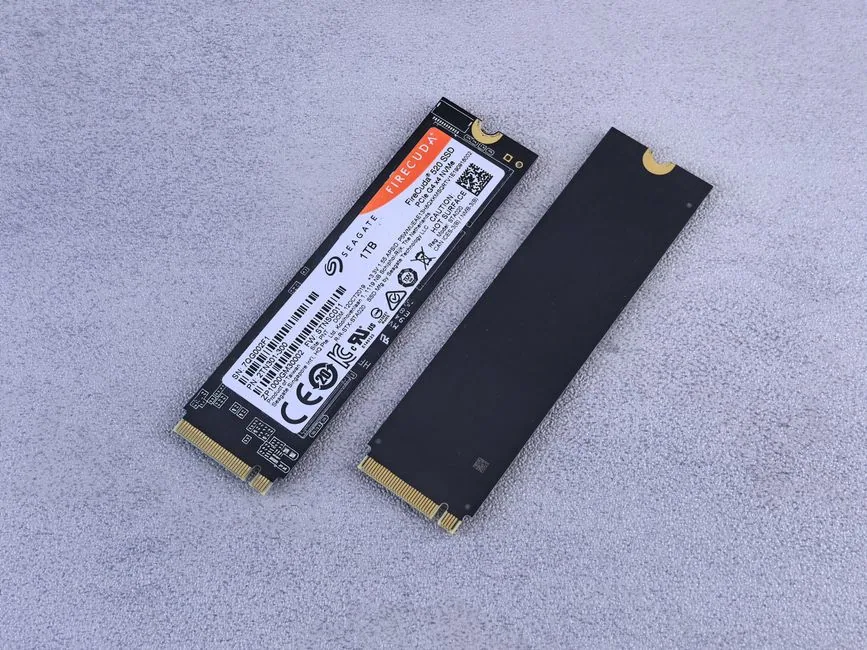
Check the full compatibility list before opening the console
| Requirement | Sony’s published guidance | What to verify |
|---|---|---|
| Interface | PCIe Gen4 x4 M.2 NVMe, Socket 3, Key M | M.2 SATA drives are not supported. |
| Capacity | 250 GB to 8 TB | Use the full drive capacity; PS5 does not format only a partition. |
| Form factor | 2230, 2242, 2260, 2280, or 22110 | Match the SSD length to the spacer position. |
| Maximum size with cooling structure | Width 25 mm; length 30/42/60/80/110 mm; thickness 11.25 mm total, including up to 8.0 mm above and 2.45 mm below the board | Measure the SSD and heatsink together, not the bare drive only. |
| Sequential read speed | 5,500 MB/s or faster is recommended | Sony calls this a recommendation. It is not a guarantee that every game performs like the internal SSD. |
| Heat dissipation | A cooling structure such as a heatsink and heat-transfer sheet is required | Do not stack another heatsink on one already built into the SSD. |
Sony says it cannot guarantee that every third-party drive meeting the listed measurements will work. If a product page omits the interface, physical dimensions with heatsink, or cooling details, ask the drive maker before purchasing. A “Gen4” label by itself is not enough to confirm that all requirements match.
Install it using the steps for your PS5 model
Before installation, update the PS5 system software, turn the console fully off, disconnect cables, and let it cool. Work on a stable, well-lit surface. Sony also instructs users to touch a grounded metal object to discharge static and says not to power or play the console while its cover is off.
- Check the CFI model number and open the correct Sony instructions. CFI-1000 and CFI-2000/7000 use different cover-removal steps; the CFI-2000/7000 group includes the newer slim and Pro models.
- Remove the console cover and expansion-slot cover as the model guide shows. Keep the small screw and spacer together.
- Move the spacer to the position matching the SSD length. Hold the SSD by its edges and align its notch with the connector.
- Insert the SSD diagonally and fully into the expansion connector. It should sit on the spacer without the heatsink obstructing the fit. Do not force it.
- Lower the drive and secure it with the retaining screw. Replace the expansion-slot cover and console cover before reconnecting power.
- On first use, follow the PS5 formatting prompt. Formatting erases data on that SSD; back up anything important before proceeding. Do not interrupt formatting.
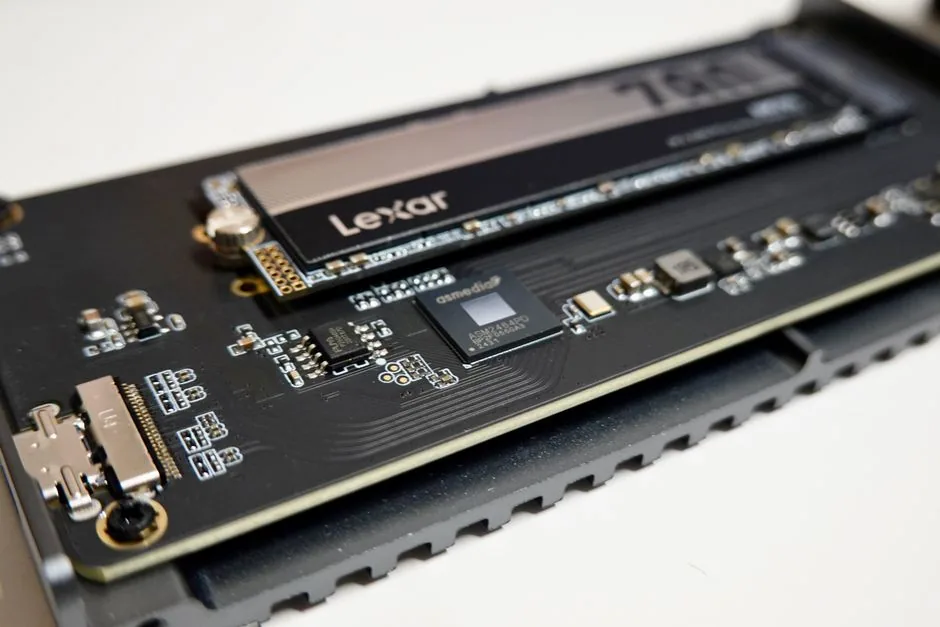
If the drive is not listed, check in this order
- Confirm the console model and exact drive model. Compare interface, capacity, length, and heatsink-inclusive dimensions against Sony’s list. A PC recognizing the drive does not establish that the PS5 accepts its interface or cooling assembly.
- Check the installation without forcing anything. Power off and unplug the console, let it cool, then follow the model-specific removal steps. Confirm the connector is fully seated, the spacer matches the drive length, and the screw holds the board flat. If anything does not align naturally, stop and check the manual.
- Check cooling and cover fit. A required heatsink or heat-transfer structure must be present, but the complete assembly must stay within the size limits. If the slot cover will not close, do not press it down; recheck the drive and cooling dimensions.
- Update system software. Sony asks users to install the latest PS5 system update before adding an M.2 drive. Use Settings → System → System Software → System Software Update and Settings → Update System Software.
- Use the console’s storage screen. After reinstalling and closing the console, check Settings → Storage → M.2 SSD Storage. If a first-use formatting screen appears, read the erase warning and back up data before confirming.
Do not treat initialization or formatting on a PC as a universal fix. Sony’s documented first-use flow is to format the drive through the PS5 prompt, and formatting erases data. Avoid repeated erase attempts when the drive contains files you need.
Internal M.2 and external USB storage are different problems
An internal M.2 drive connects through the PS5 expansion slot. External USB storage connects through a cable and USB port. Cable checks and external-drive formatting advice do not diagnose an internal M.2 connection. Sony also notes that PS5 games can be stored on USB extended storage but must be copied back to console or M.2 storage to play; games installed on M.2 storage can be played there.
If the M.2 drive is detected but one game has trouble, Sony recommends moving that game to the console’s internal storage. A game-specific issue is not the same as the SSD being absent from the M.2 Storage screen.
When to stop troubleshooting
If the exact drive is within Sony’s specifications, its cooling structure fits, the installation matches the model guide, and the console software is current, but the drive still does not appear, avoid more trial-and-error formatting or repeated disassembly. Record the PS5 CFI number, SSD model, and what the storage screen shows; then contact PlayStation Support or the SSD maker. This article cannot determine remotely whether the drive, connector, or console needs service.
Common questions
Is 5,500 MB/s a hard minimum?
Sony says 5,500 MB/s or faster is recommended. Its official page does not describe that figure as a guaranteed pass/fail threshold, and it cautions that some games may not perform identically to the internal SSD even with a faster M.2 drive.
Can I use an M.2 SATA SSD?
No. Sony says M.2 SATA SSDs are not supported. The supported interface is PCIe Gen4 x4 M.2 NVMe, Key M.
Do PS5 Slim and PS5 Pro have different M.2 directions?
Sony groups CFI-2000/7000 consoles together for M.2 installation and removal. Check the CFI model number and use that group’s instructions; do not rely on a generic video that does not identify its console model.
Will first-time formatting erase the SSD?
Yes. Sony warns that formatting erases data on the drive and cannot be undone. Back up needed files before following the on-screen format prompt.
Can an external USB SSD play PS5 games directly?
Sony says PS5 games stored on USB extended storage need to be copied back to console storage or M.2 storage to play. M.2 expansion storage can store and launch PS5 and PS4 games.
Official sources
- Sony PlayStation Support: Add an M.2 SSD to a PS5 console — requirements, CFI-1000/2000/7000 steps, formatting and USB-storage distinctions.
- Sony PlayStation Support: Update PS5 system software — current update path and official USB update method.
Image credits
Photo by Andrey Matveev on Pexels
Photo by Przemek Leśniewski on Pexels
Photo by Pascal on Pexels