Contents
- What Laptop CPU Temperature Is Actually Too Hot?
- Intel's Own Spec Pages Don't Even Agree With Each Other
- The AMD Number Nobody Can Actually Confirm
- What Actually Happens When a CPU Hits Its Max Temperature
- Why Your Laptop Is Overheating in the First Place
- How to Actually Check Your CPU Temperature
- Fixes That Work, Ranked by Effort
- Frequently Asked Questions
Intel’s own spec pages don’t agree on a single “too hot” number. A 13th-gen Core i7-1355U tops out at 100°C. A Core Ultra 7 155H, from the same company, is rated to 110°C. That’s a 10°C gap inside one vendor’s current lineup, and it’s the reason “just watch for 90°C” advice falls apart the moment you check two different laptops. Below is what the manufacturers actually publish, what’s still unconfirmed, and what to do about a laptop that’s running hot right now.
What Laptop CPU Temperature Is Actually Too Hot?
It depends on the chip — but Intel’s own current lineup sits between 100°C and 110°C.
We opened three Intel product-specification pages directly on intel.com and read the “Tjunction” / “Max Operating Temperature” field listed under Package Specifications for each chip. Here’s what they say:
| CPU (generation) | Source | Max operating temperature |
|---|---|---|
| Core i7-1355U (13th gen, Raptor Lake) | intel.com product page | 100°C |
| Core i9-13900H (13th gen) | intel.com product page | 100°C |
| Core Ultra 7 155H (Meteor Lake) | intel.com product page | 110°C |
| Ryzen 7 7840HS (AMD, Ryzen 7040) | AMD’s own page unreachable; widely cited across search results | 100°C (not confirmed on amd.com) |
Intel’s own support article backs up the spread rather than treating it as a fluke: the maximum operating temperature “varies per processor and usually is between 100°C-110°C.” So a laptop chip sitting at 95°C under load isn’t automatically in danger — it depends entirely on which chip is inside.
We only checked three Intel SKUs and one AMD chip. That’s not a full lineup survey. If you want your exact number, the method is simple: go to ark.intel.com, search your processor, and open the “Package Specifications” section for “Tjunction.”
Intel’s Own Spec Pages Don’t Even Agree With Each Other
This is the part most laptop-overheating articles skip. They tell you to “keep it under 90°C” as if every chip shares one ceiling. It doesn’t.
The i7-1355U and i9-13900H, both 13th-gen chips, cap at 100°C. The Core Ultra 7 155H — Intel’s newer Meteor Lake architecture — is rated 10°C higher, at 110°C. Same company, current-generation chips, two different numbers.
That gap matters for anyone trying to decide whether a temperature reading is a problem. A 105°C reading is past the limit on an i9-13900H. On a Core Ultra 7 155H, it’s still inside spec.
Where this stat comes from: we didn’t pull it from a forum post or a “normal CPU temp” listicle. We opened Intel’s own ARK product pages for all three chips and read the field directly.
The AMD Number Nobody Can Actually Confirm
Widely reported: 100°C. Confirmed by AMD directly: no — not in this check.
Every attempt to open AMD’s own product or support pages for the Ryzen 7 7840HS timed out after 60 seconds. A LaptopMedia page carrying the same figure also failed to load, returning an HTTP 403. The 100°C number that keeps circulating for this chip is search-snippet consensus — nobody’s page, AMD’s or anyone else’s, actually opened and confirmed it this time.
To complicate it further, a separate search turned up a conflicting figure: 95°C, not 100°C, for AMD’s Tjmax. Neither number checks out against a primary source, so we’re not picking a winner between 95°C and 100°C.
Personally, I’d guess the 100°C figure keeps circulating because it’s easy to copy from site to site, not because anyone’s actually double-checked it against AMD’s documentation. Until AMD’s own pages load, treat any AMD Tjmax number you see — including ours — as reported, not verified.
What Actually Happens When a CPU Hits Its Max Temperature
Here’s a gap that surprised us: Intel’s own support article defines the maximum operating temperature number, but it doesn’t explain what happens once a chip reaches it — whether it throttles clock speed, shuts down outright, or both. Intel simply doesn’t say.
What we can say, based on how the temperature figure is used across the spec pages: the “max operating temperature” listed is the point at which the chip protects itself, not a temperature that’s safe to sit at for hours. Manufacturers don’t publish a separate “ideal continuous” range below that ceiling. There’s no official “green zone” number — just the red line.
That absence is worth sitting with for a second. Nobody’s told you what a healthy CPU temperature looks like. Only where it stops being safe.
Why Your Laptop Is Overheating in the First Place
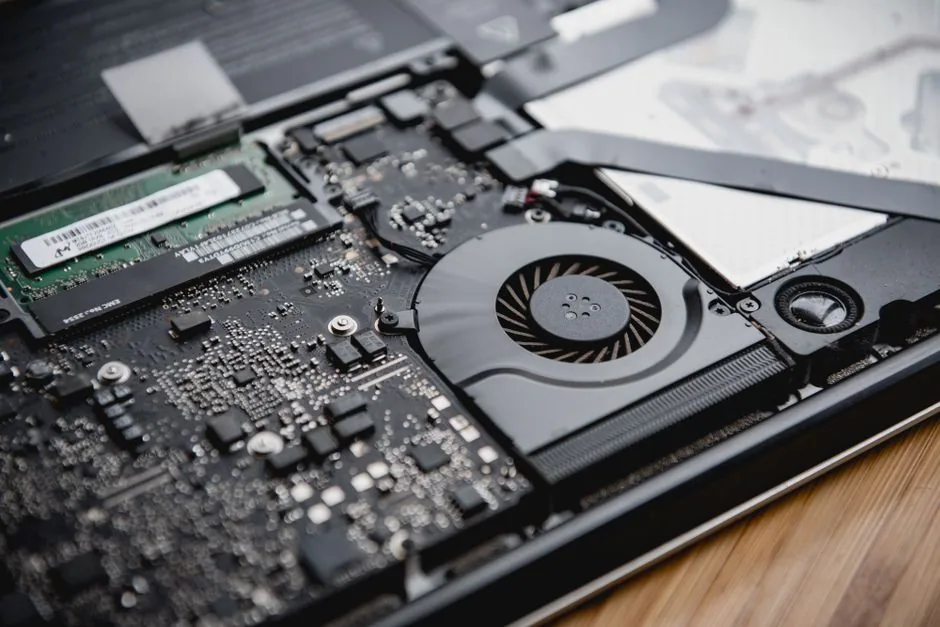
None of this is exotic. According to TeamViewer’s guide on the subject, the most frequent cause of overheating is obstructed airflow from dust and debris building up inside the case.
| If this is your situation… | …this is likely contributing |
|---|---|
| Laptop used on a bed, couch, or lap | Blocked intake vents from a soft surface |
| Room feels warm or stuffy | High ambient temperature forcing the fan to work harder |
| Gaming, rendering, or compiling code | Demanding workloads pushing sustained high load |
| Laptop is a few years old | Aging hardware — degraded thermal paste, worn fans |
That last row assumes an older machine. If yours is fresh out of the box and already running hot, the causes above mostly don’t apply — 9 signs a new laptop’s overheating is actually normal walks through that separate case.
A few of these deserve more detail:
- Thermal paste dries out. It loses thermal conductivity over time and stops filling the microscopic gap between the CPU and the heatsink, according to How-To Geek’s reporting. Factory-applied paste lasts around three years. A DIY reapplication is generally good for another three to four years — reapplying every single year, by contrast, only brings a marginal improvement.
- Background load may play a role, but the sourcing here is soft. TeamViewer’s fix list recommends closing unnecessary background apps, which implies heavy CPU load contributes to heat — but that’s our inference, not something the source states outright.
- Aging batteries are sometimes blamed for overheating too. No source we checked backs that up with an actual mechanism. It’s a common claim, not a confirmed one.
Warning signs that your thermal paste specifically is the problem, per How-To Geek: sustained temperatures near that ~100°C max-safe ceiling, clock speeds dropping below the base clock, and outright throttling or shutdowns. Repasting can restore higher boost clocks and quieter fan noise.
How to Actually Check Your CPU Temperature
Windows Task Manager does not show CPU temperature. That’s confirmed directly, not assumed.
On a Microsoft Q&A thread, a respondent addressing exactly this question wrote:
“I don’t see the temperature of my GPU in Task Manager, and neither do I see the temperature of my CPU. To see either one, you need to have hardware and/or software that measures or, more likely, estimates the temperature.”
The original post asking that question was itself a feature request — someone asking Microsoft to add CPU temperature to Task Manager, which only makes sense if it isn’t there already. iTechGuides independently backs this up, stating plainly that “Windows Task Manager does not show CPU temperature” and that the common instructions telling people otherwise are wrong.
One wrinkle: the original poster on that Microsoft thread claimed GPU temperature already shows up in Task Manager, but the response quoted above disputes seeing GPU temperature too. So don’t treat GPU temperature support in Task Manager as fully settled — it can show up via the Performance tab when the graphics driver exposes it, but that’s not guaranteed either.
So what do you actually use? iTechGuides ranks the options:
- The UEFI/BIOS screen — described as the most software-independent option, viewable at startup while the system is idle.
- Hardware-monitoring applications while Windows is running.
- Manufacturer utilities, particularly useful on gaming laptops with a vendor control-center app.
Named tools worth knowing: HWiNFO, Core Temp, and Open Hardware Monitor. The same guide advises downloading from the official project or vendor page specifically — a reasonable security habit for anything that reads system sensors, and the same instinct behind checking whether a Google ad is legitimate before you click an ad-ranked download link instead of the real vendor page. One more tip worth repeating: read the labels carefully. It’s easy to mistake a CPU usage percentage for a CPU temperature reading in some of these tools, and they are not the same thing.
Fixes That Work, Ranked by Effort
You don’t need to reapply thermal paste every time a laptop runs warm. Start at the top of this list and stop once it’s resolved.
Minimal effort:
- Let the device cool for 15–20 minutes.
- Move it to a hard, flat surface — off the bed, couch, or your lap.
Low effort:
- Clean vents and fans with compressed air.
- Close unnecessary background apps through Task Manager.
- Switch the power plan from “High performance” to “Balanced.”
Moderate effort:
- Use a laptop cooling pad with built-in fans.
- Replace or reapply dried-out thermal paste on the CPU and GPU.
Ongoing maintenance:
- TeamViewer suggests scheduling an interior cleaning every 3–6 months. How-To Geek, separately, suggests compressed-air cleaning once or twice a month produces a more noticeable improvement than repasting alone. The two don’t agree, so here they both are — no averaged, made-up consensus number.
- Keep drivers and firmware updated.
One more fix shows up everywhere online: unplugging the charger briefly during heavy use, since charging itself generates some heat. No single source we opened directly backs it up. Call it a commonly repeated tip, not a documented fix.
Left unaddressed, chronic overheating carries real costs — reduced battery life, slower performance from repeated throttling, unexpected shutdowns, and, over time, damage to internal components. That’s aggregated guidance, not a lab-tested number. Treat it as a reasonable expectation.
Frequently Asked Questions
Does Windows Task Manager show CPU temperature? No — confirmed directly through a Microsoft Q&A thread and corroborated by iTechGuides. You need a separate tool, the UEFI/BIOS screen, or a manufacturer utility. This could change in a future Windows update, but it isn’t there as of this check.
Is 90°C too hot for a laptop CPU? It depends on the chip, not a universal number. Intel’s own current lineup runs a max operating temperature between 100°C and 110°C depending on the generation, so 90°C is within spec for every Intel chip we checked. AMD’s Ryzen chips are widely reported at around 100°C, but that figure isn’t confirmed directly on AMD’s own site as of this check, so treat it as reported rather than verified.
How often should I clean dust or replace thermal paste? Sources don’t fully agree. One guide recommends an interior cleaning every 3–6 months; another says compressed-air cleaning once or twice a month shows a more noticeable improvement. Factory-applied thermal paste is generally good for around three years, and a DIY reapplication for another three to four years after that — reapplying annually adds only a marginal benefit.
What’s still missing here is a directly confirmed AMD number and any real explanation, straight from a manufacturer, of what physically happens once a chip crosses its max temperature — throttling, shutdown, or something else. Until AMD’s pages actually load, or Intel publishes something more specific, those two questions stay open. If your laptop is running hot right now, start at the top of the fixes list above and work down — most of this gets solved before you ever need to touch a tube of thermal paste.
Image credits
- Photo by KIEU TRUONG on Pexels